项目文档
README 全文
应用仓库的 README 原样搬进站点:界面截图、上手教程、常见问题、隐私矩阵与开发约定都在这一页;右上角可切换中英文。
英文版为站点翻译的 README 译文,与中文版共用同一批界面截图。
一、这是什么#
MindEtude(中文名「凝知」)是一个本地优先(local-first)的 AI 教育 Agent,用 Flutter 写成,支持 Android / iOS / macOS / Windows。
它不是一个"套壳聊天框",而是一位有记忆、有账本、有计划的 AI 教师:
| 你做什么 | 它记什么 | 你在哪里看到 |
|---|---|---|
| 提问、被讲解、做测验、交作业 | 每个知识点的掌握概率(FSRS 间隔复习算法) | 学习报告 → 知识点列表 / 知识点详情折线图 |
| 答错题 | 错题本,按 1/2/4/7/15/30 天阶梯自动排复习 | 学习报告 → 错题本 / 错题详情 |
| 说"帮我排个计划" | 学习计划(周期任务 + 里程碑),写入前必须你点头 | 主页今日任务卡 / 学习计划页月历 |
| 每天聊天、完成任务 | 年度努力值(投入度 / 专注度 / 执行力 / 坚持度) | 主页热力图卡 / 年度努力值页 |
| 上传 PDF、PPT、照片 | 附件全文(不截断)与项目文件 | 聊天页附件卡 / 工作空间页 |
| 说"帮我备一节课" | 教案:先出骨架、你确认、再逐环节生成正文 | 学习报告 → 教案本 / 教案详情 |
三条设计原则贯穿全局:
- 数据不出本机。 对话历史、知识点、错题、计划、附件全文、头像,全部存在本地 SQLite(
xieliagent.db)。只有你发出去的那一轮对话会送到你自己配置的模型端点。 - 模型够不着数据库。 LLM 只能通过一组权限受控的工具访问数据;删除、写文件、改计划、跑代码这类有副作用的操作,一律弹确认卡由你批准。
- 不靠模型打绝对分。 掌握度用"记忆保持率"预测而非模型随口打分;努力值的本地四因子算法永远独立于 LLM 存在。
二、界面一览#
下列截图均为 Android 浅色模式真机截图(1256×2760,OPPO PLA110),源文件在
docs/screenshots/。 深色模式对照见下方最后一行;Windows 宽屏分栏见 4.2。
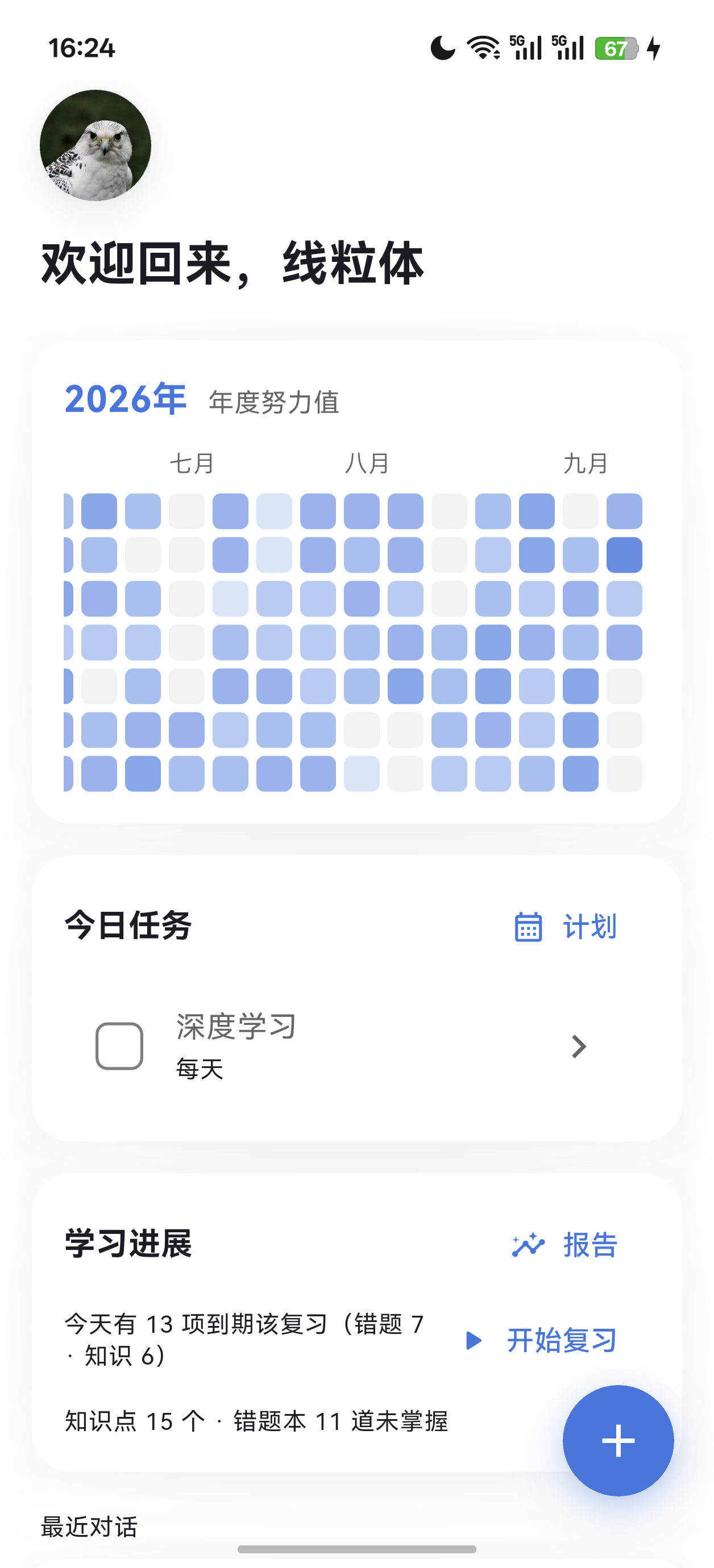 主页 努力值 / 今日任务 / 学习进展 |
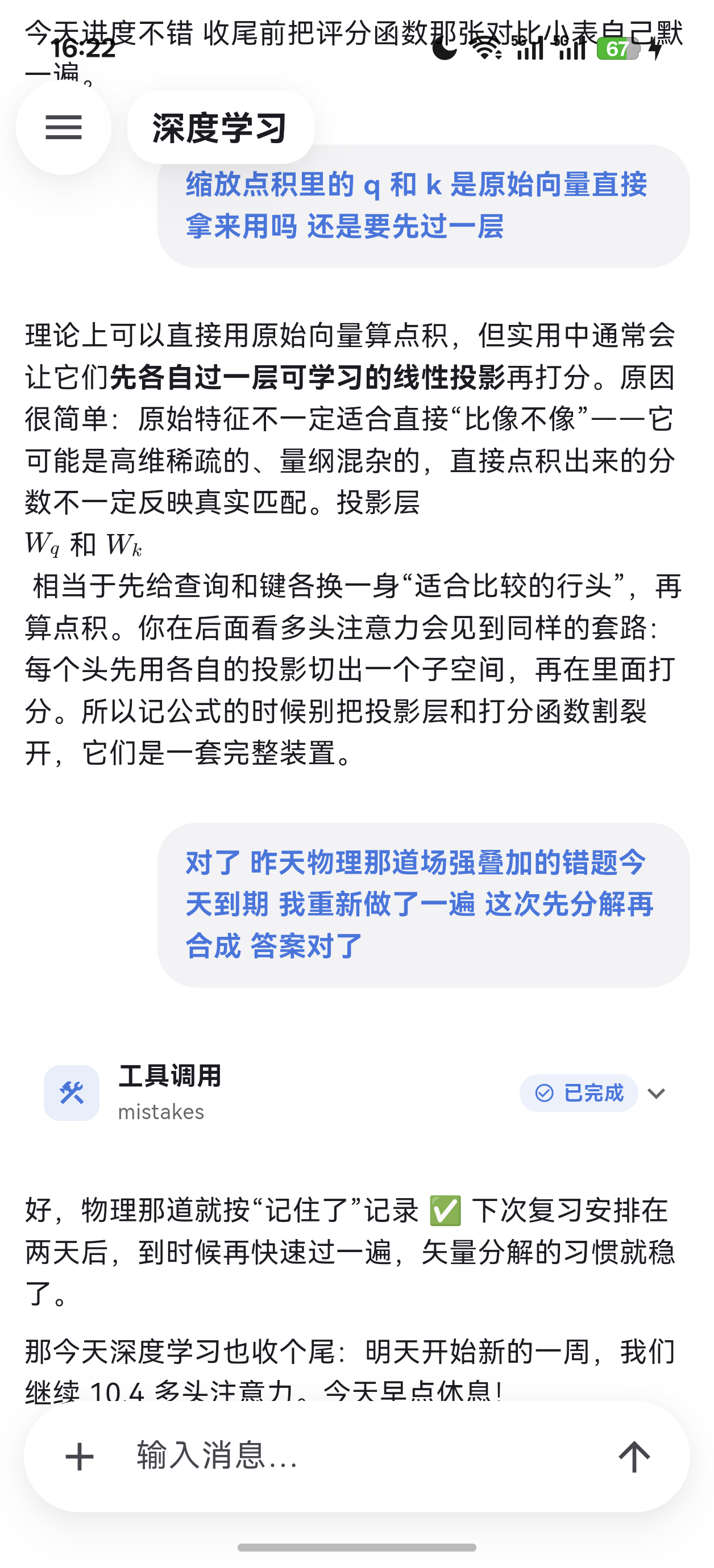 对话 Markdown、LaTeX、工具调用 |
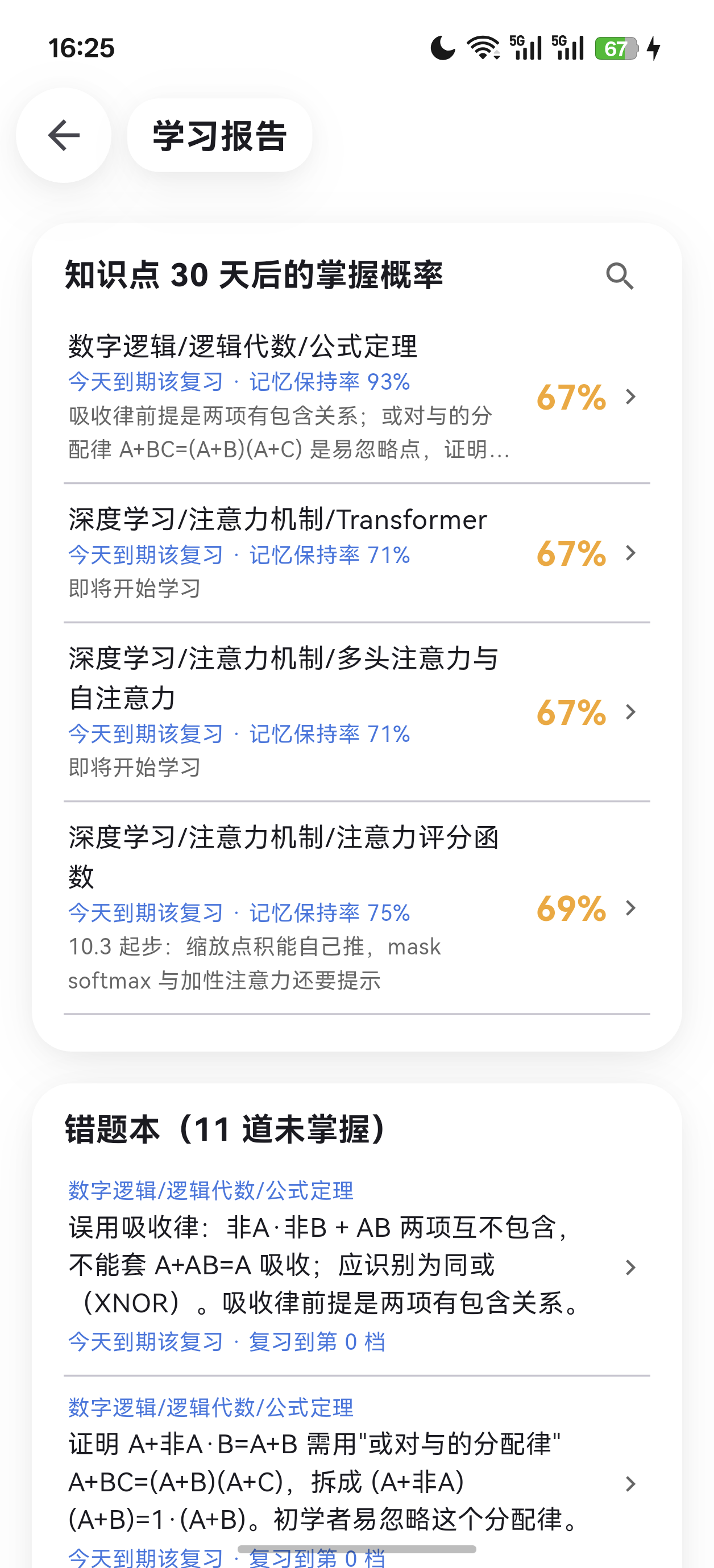 学习报告 掌握概率 / 错题 / 教案 |
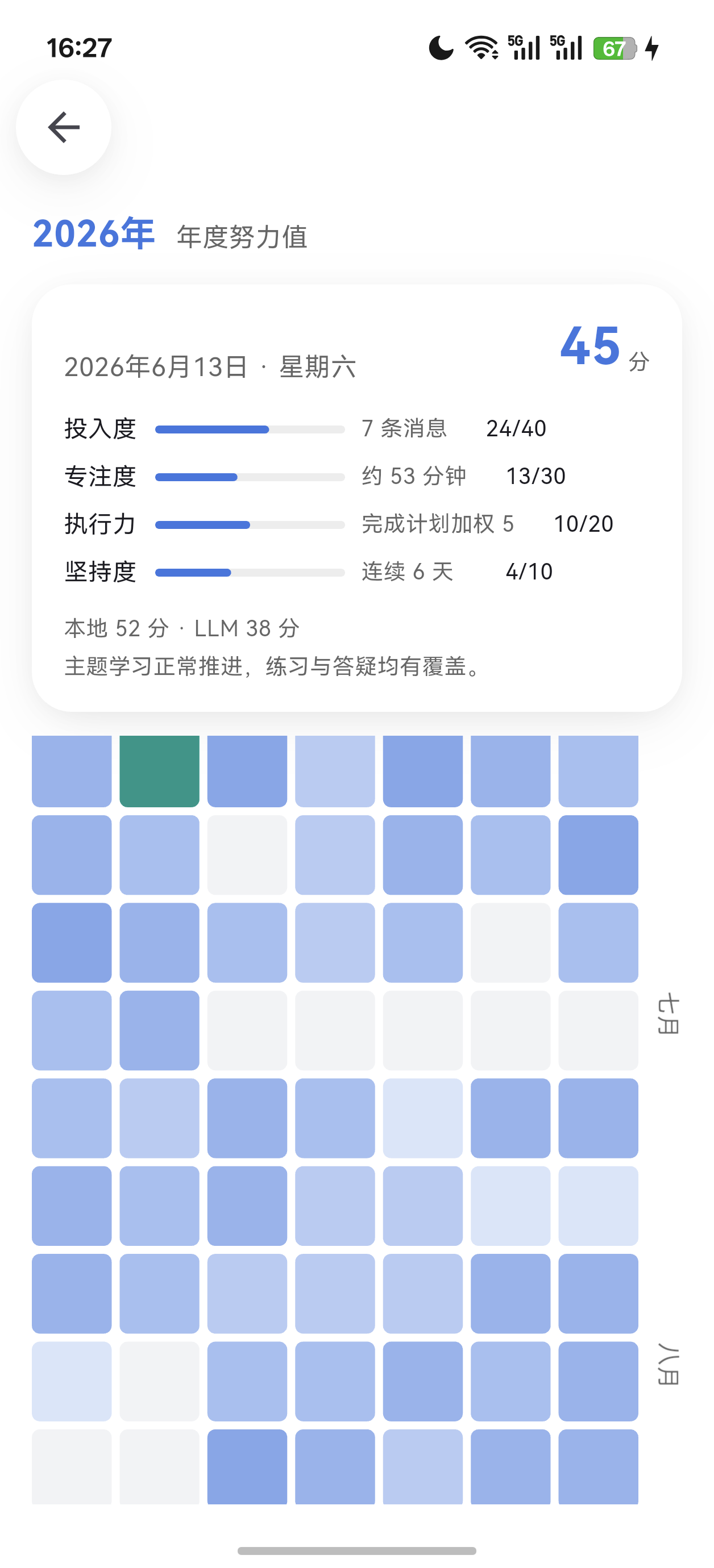 年度努力值 点格子看当天四因子 |
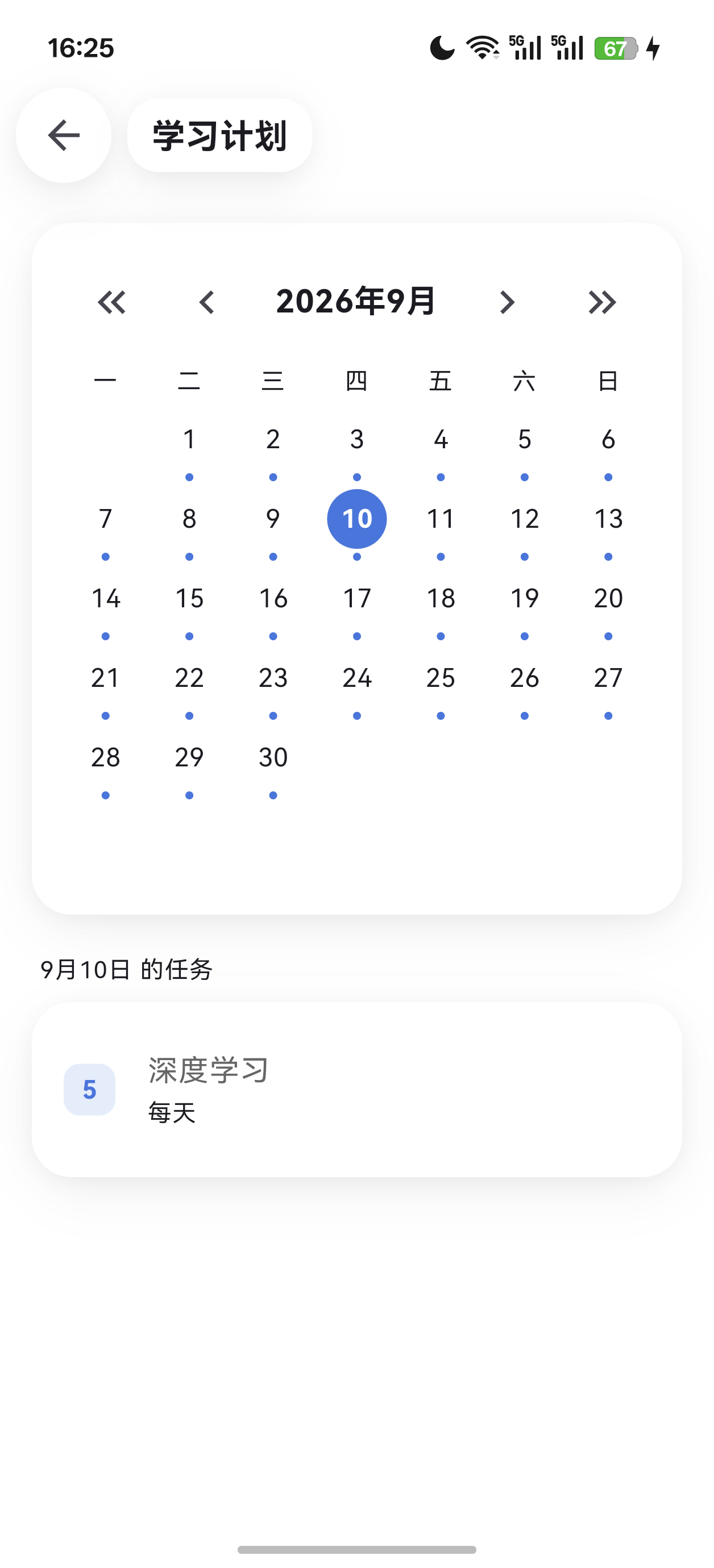 学习计划 月历 + 当日任务 |
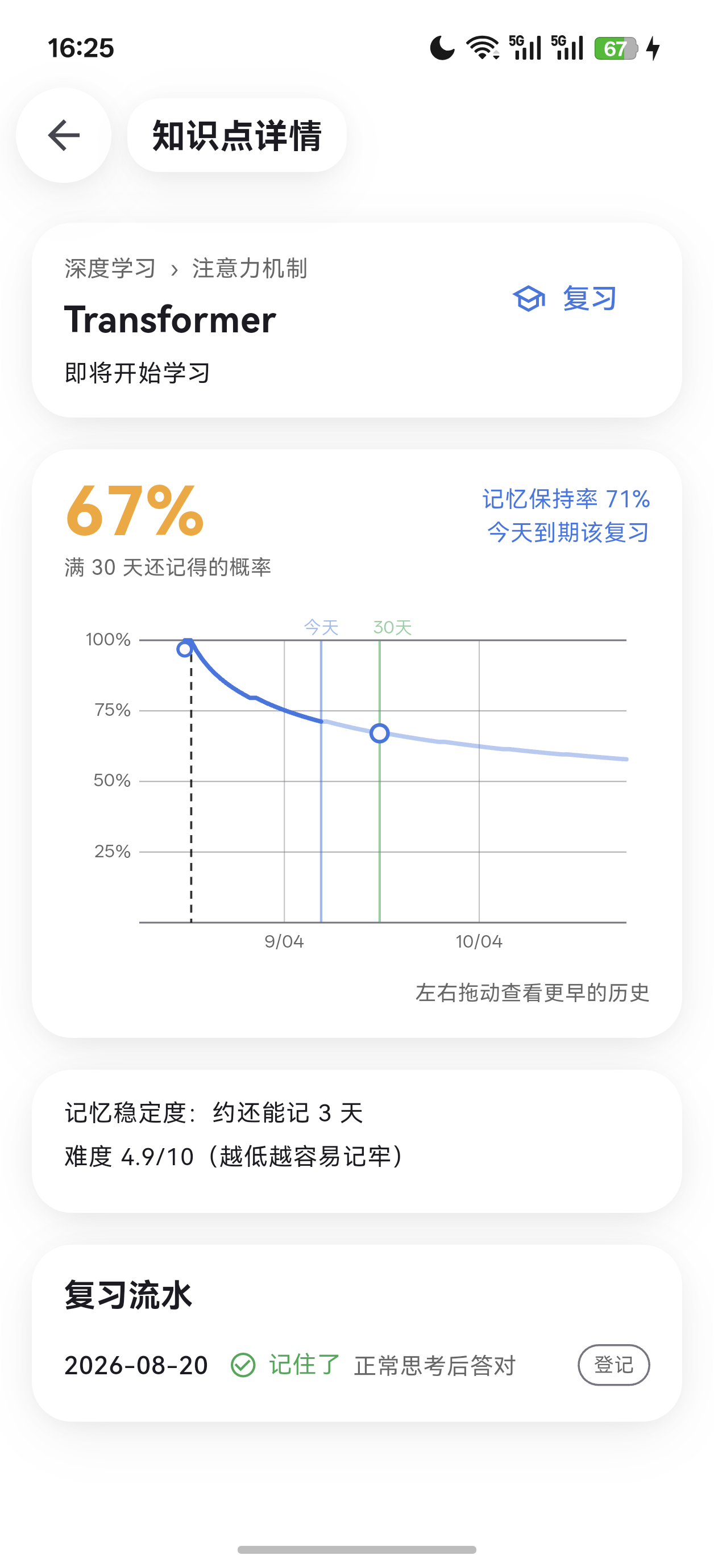 知识点详情 记忆衰减曲线 |
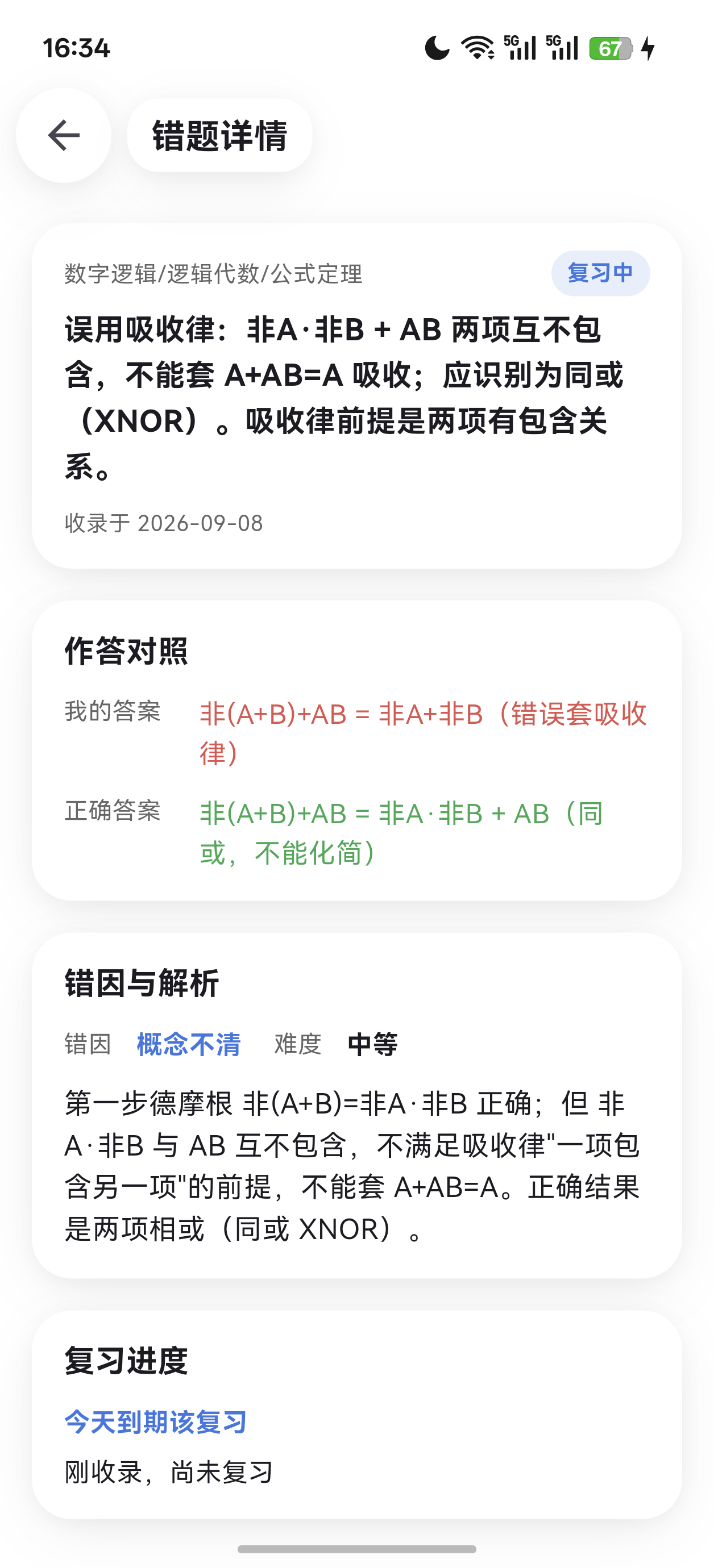 错题详情 作答对照 / 错因解析 |
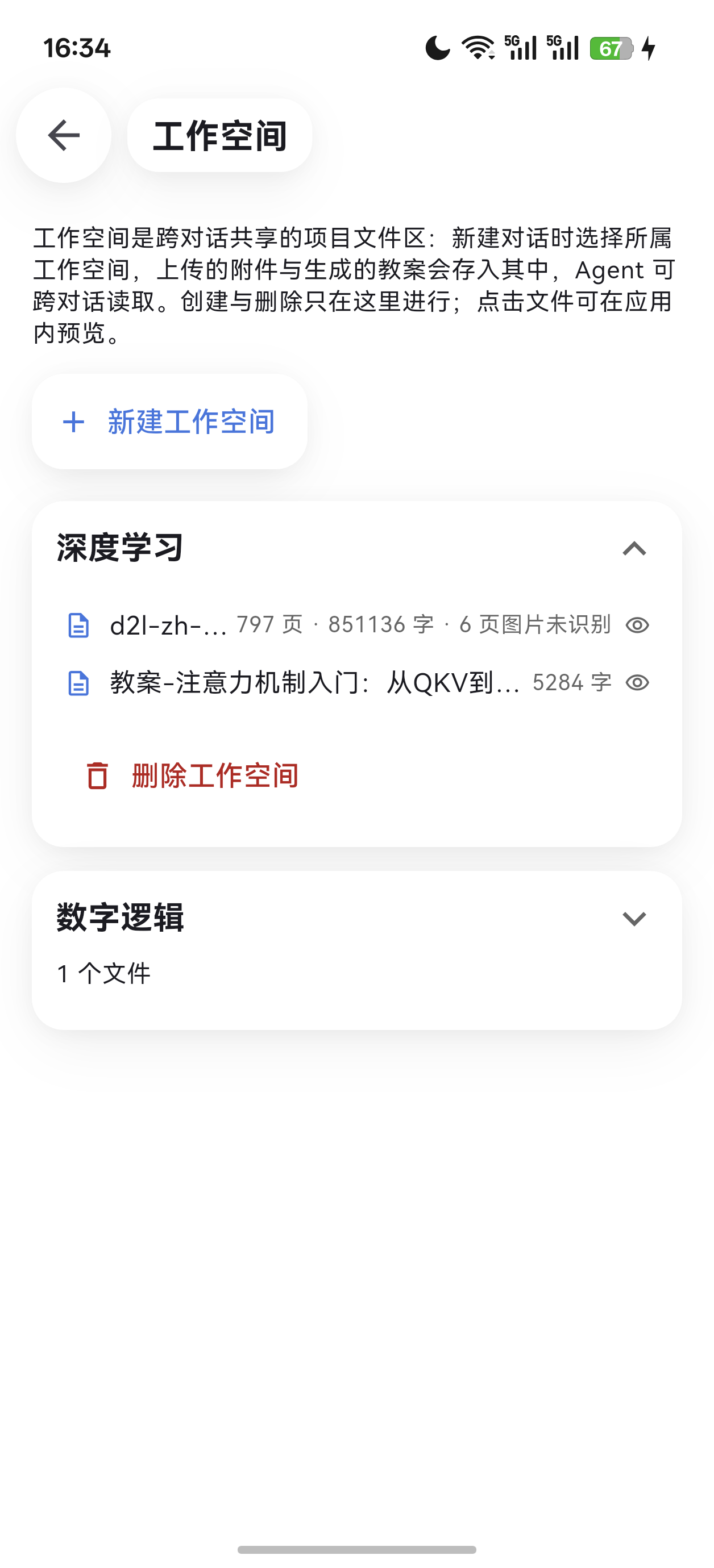 工作空间 跨对话的项目文件区 |
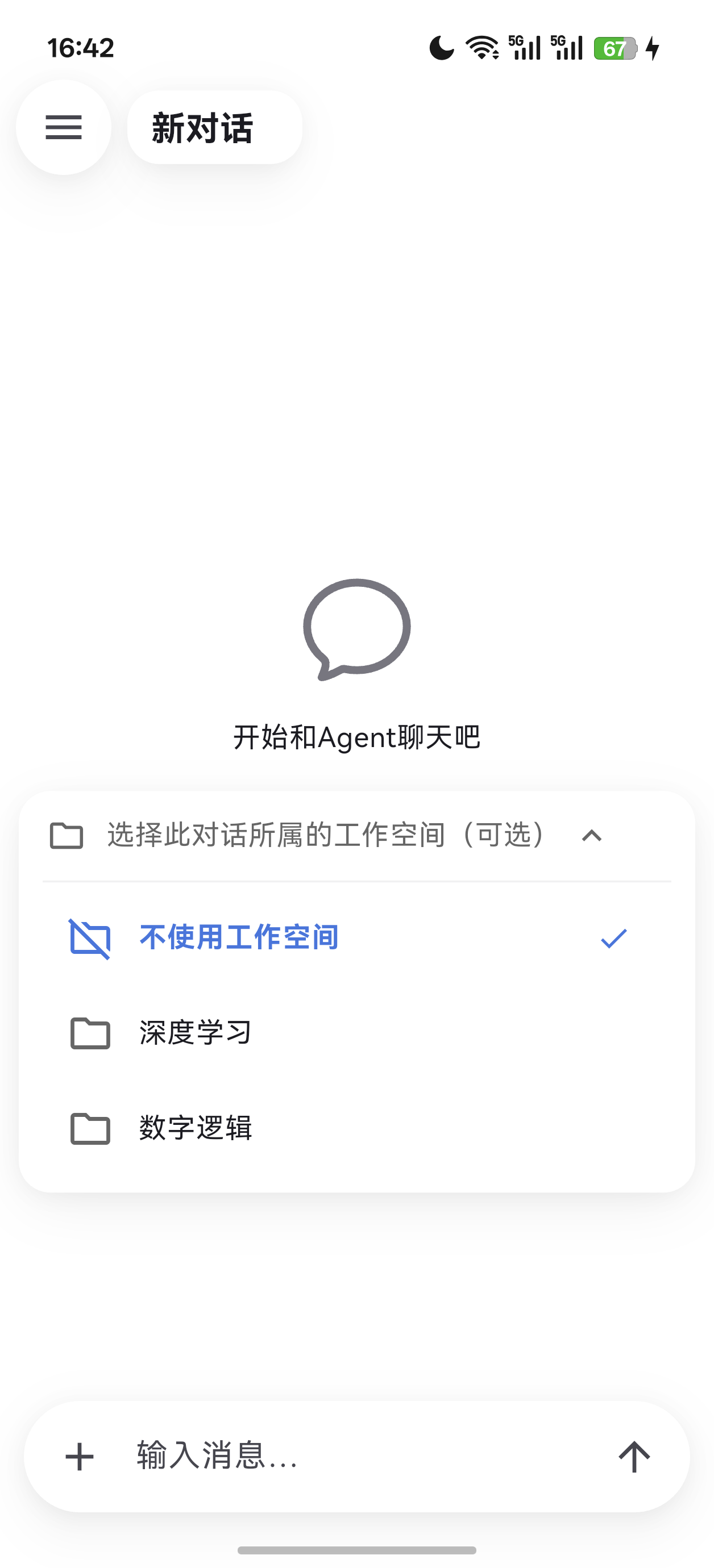 新对话 空态 + 工作空间选择器 |
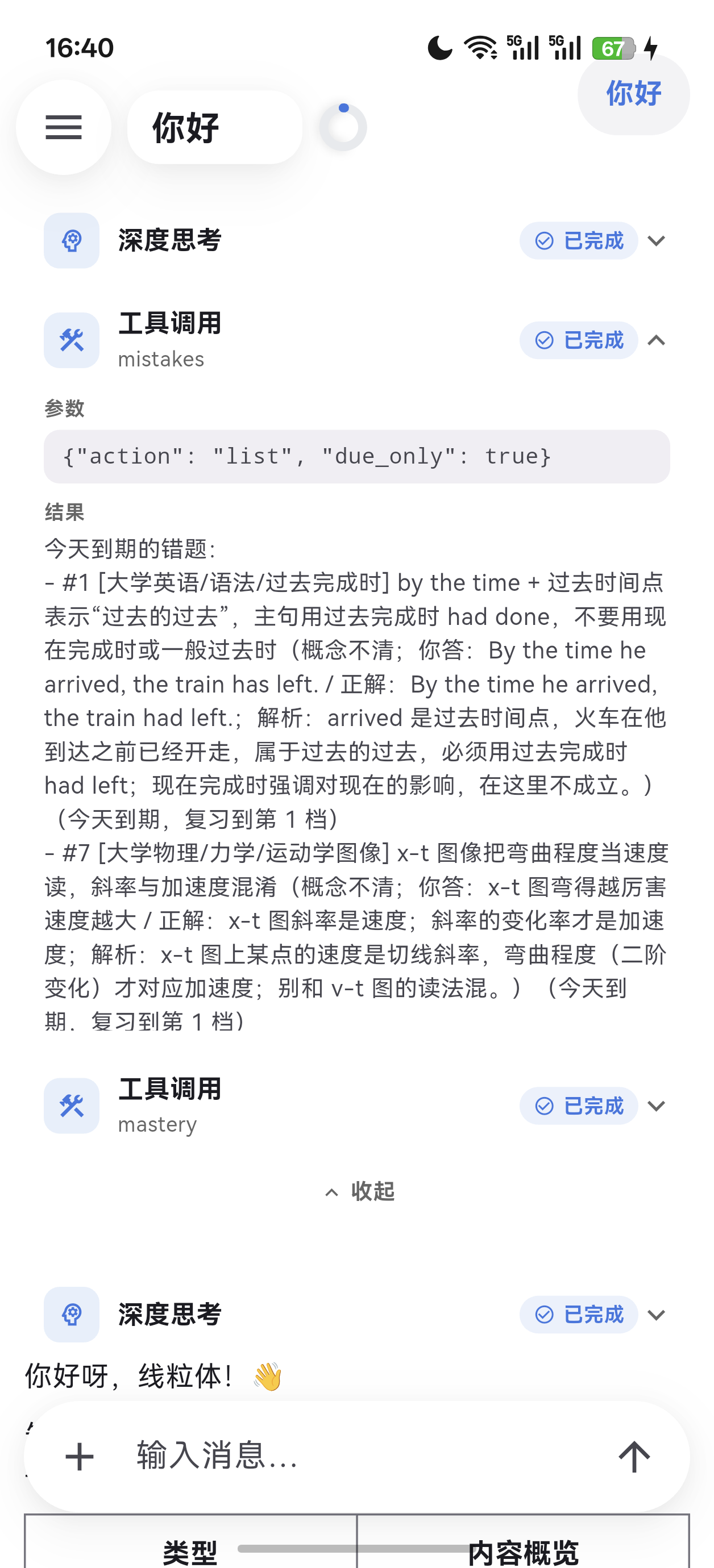 工具调用 / 深度思考 可追溯的账本 |
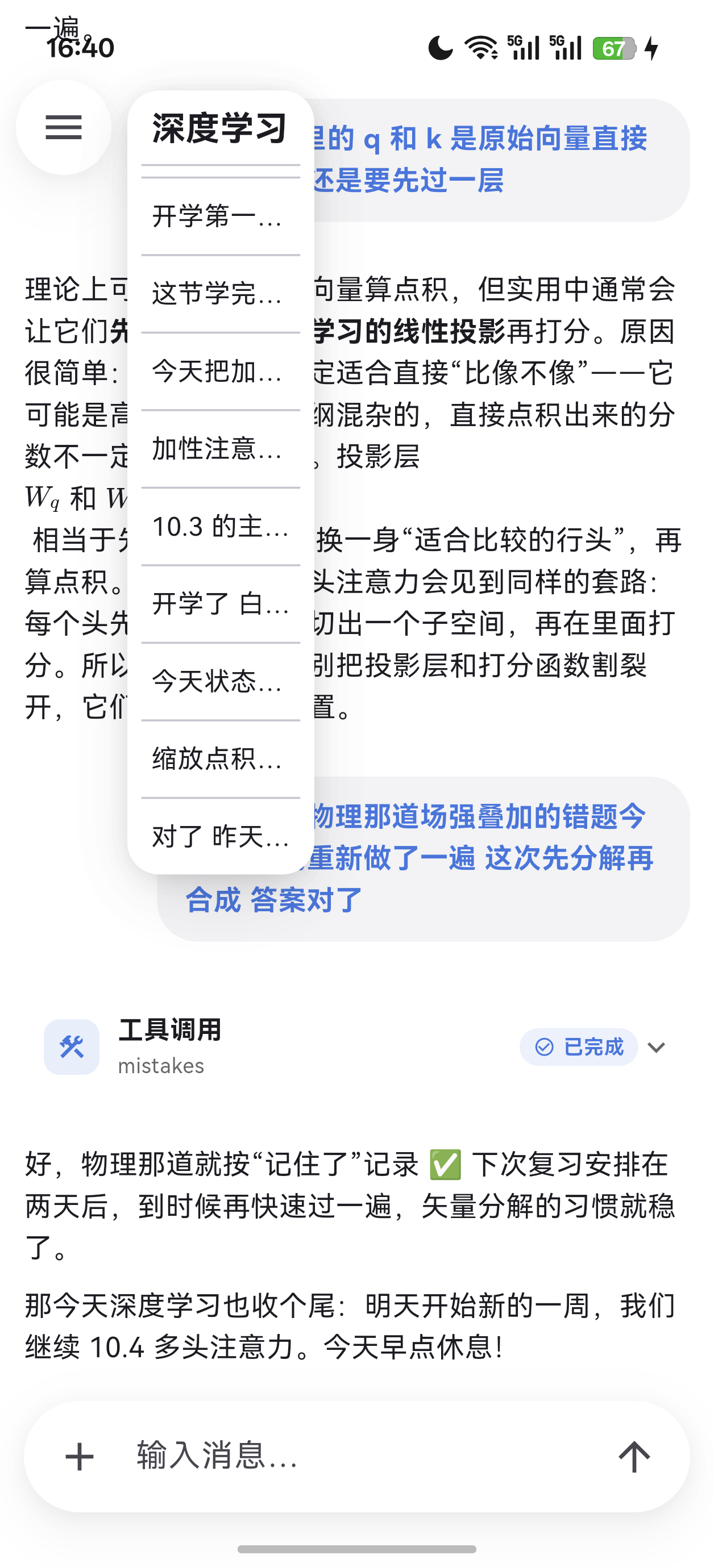 消息目录 跳到任意一条历史提问 |
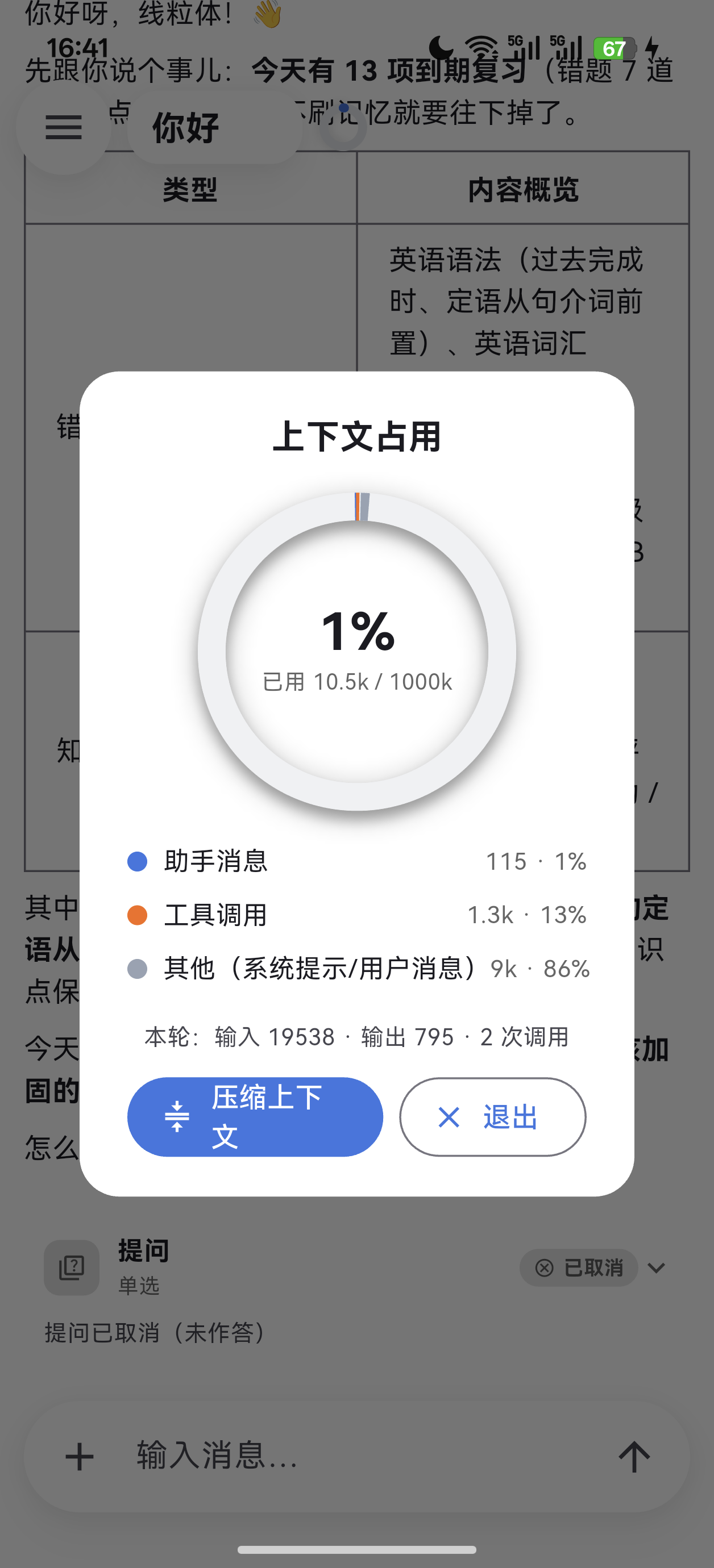 上下文占用 图例 + 一键压缩 |
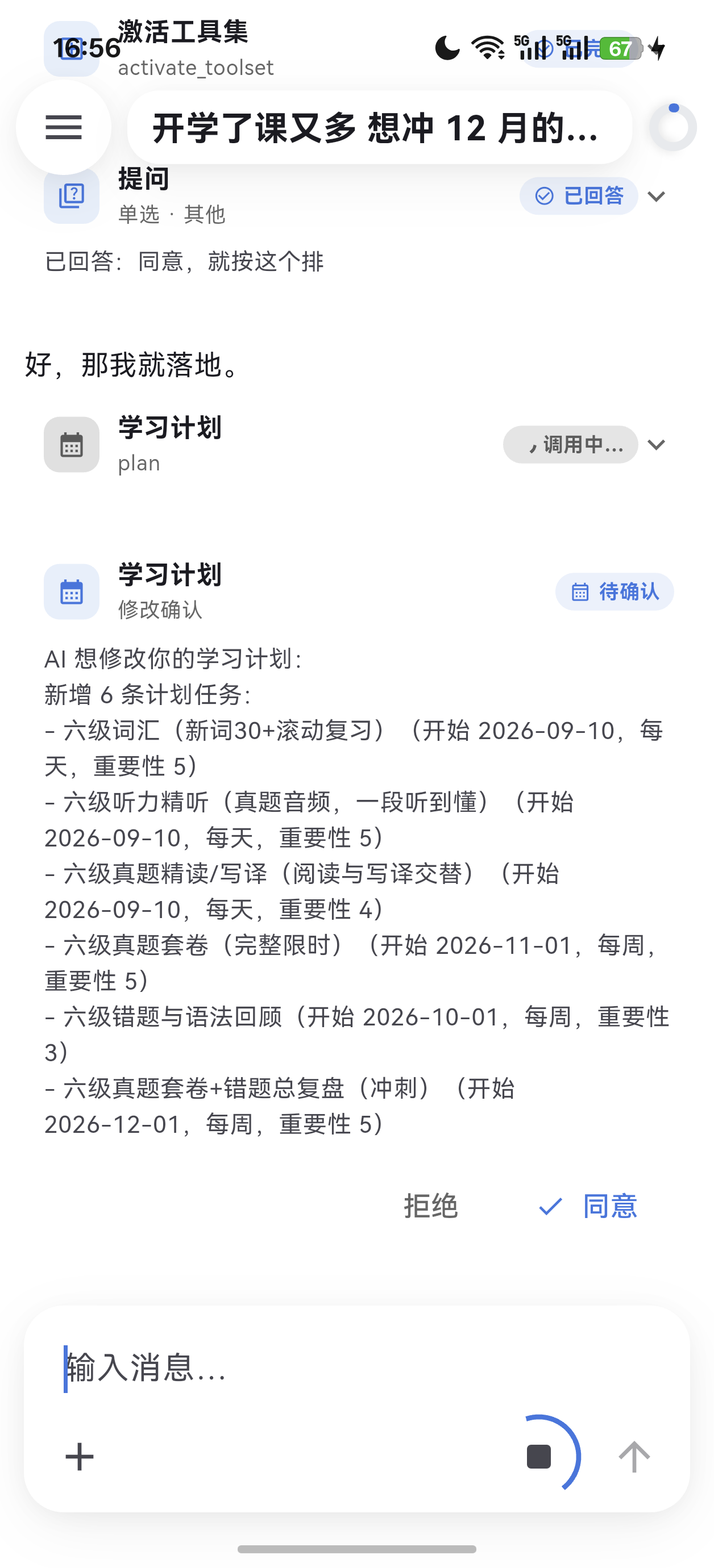 计划确认卡 逐行汇总 + 同意/拒绝 |
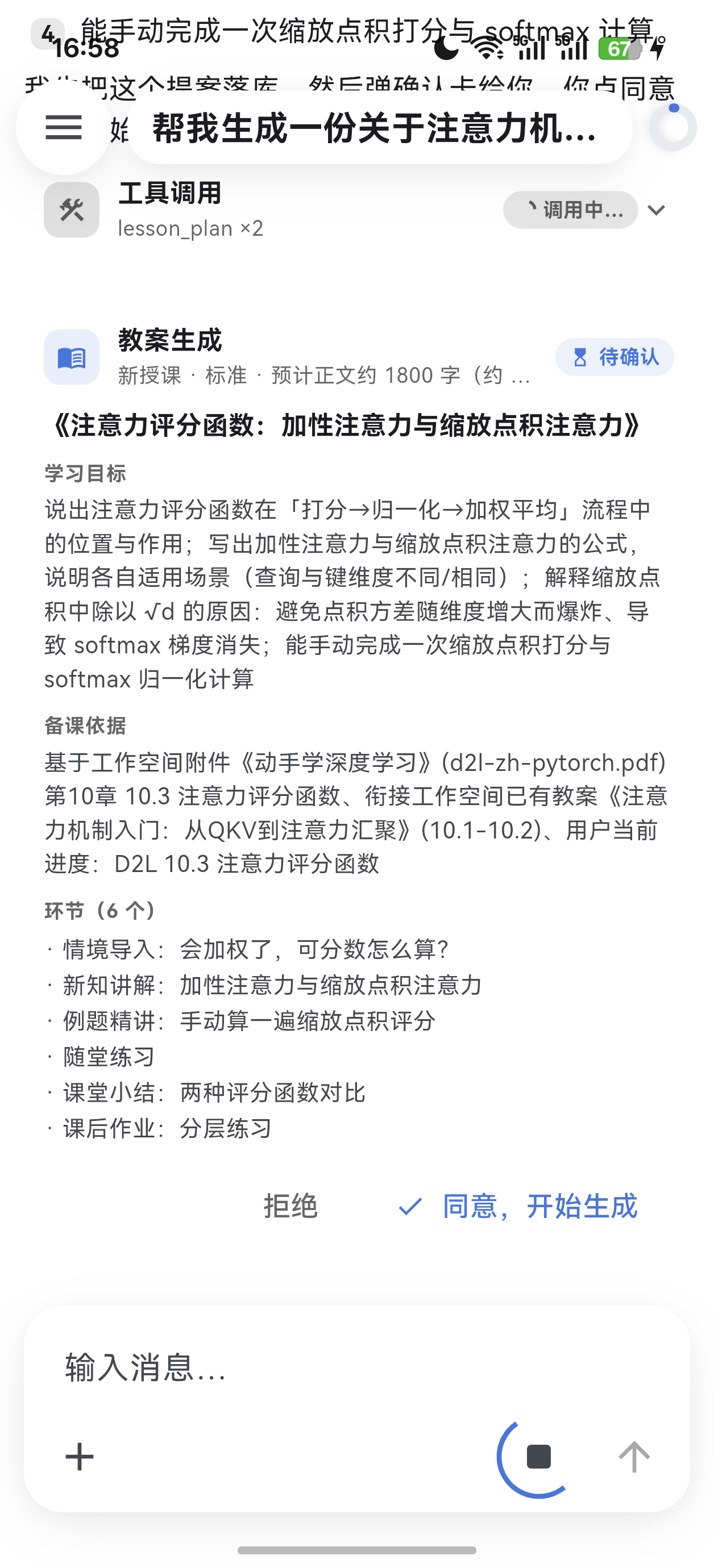 教案提案卡 目标 / 依据 / 环节清单 |
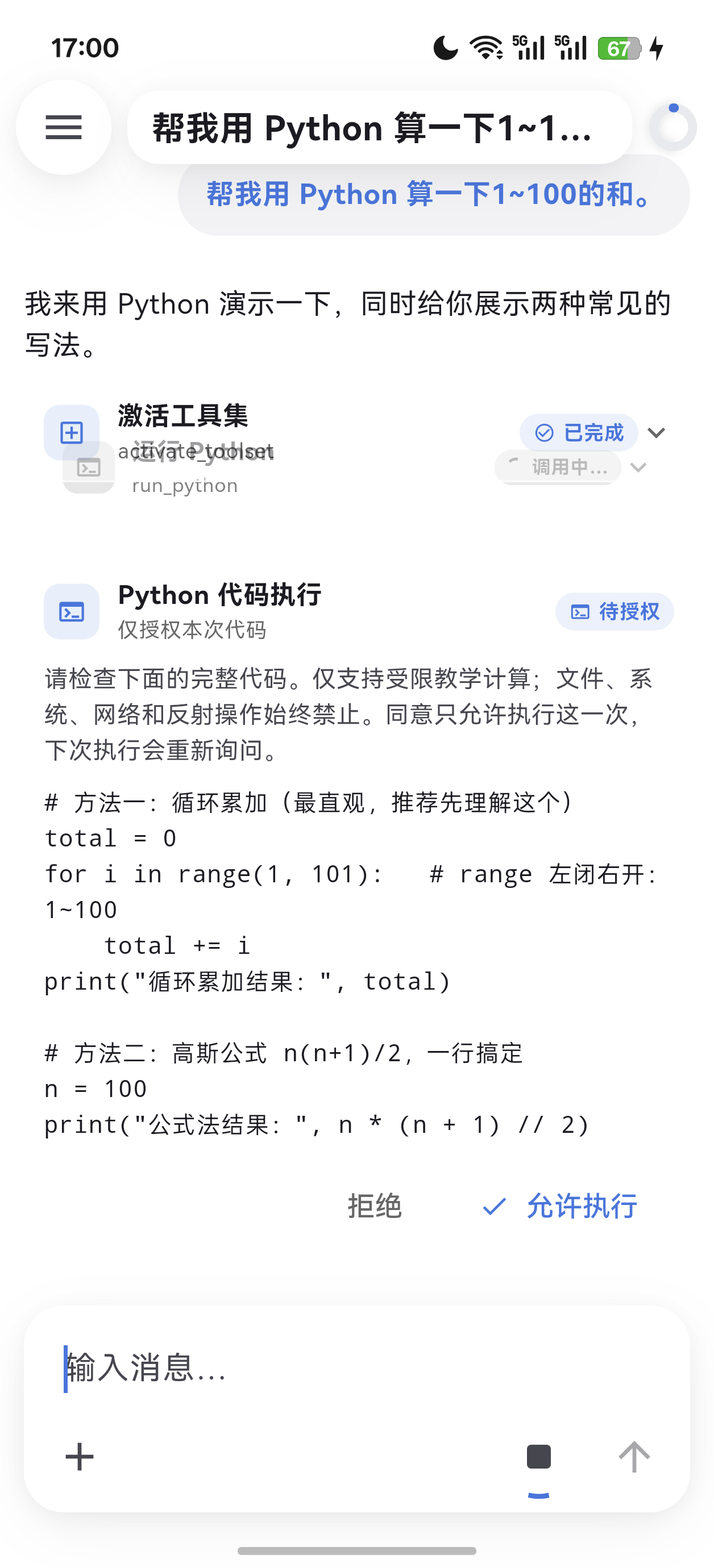 Python 授权卡 完整代码 + 逐次授权 |
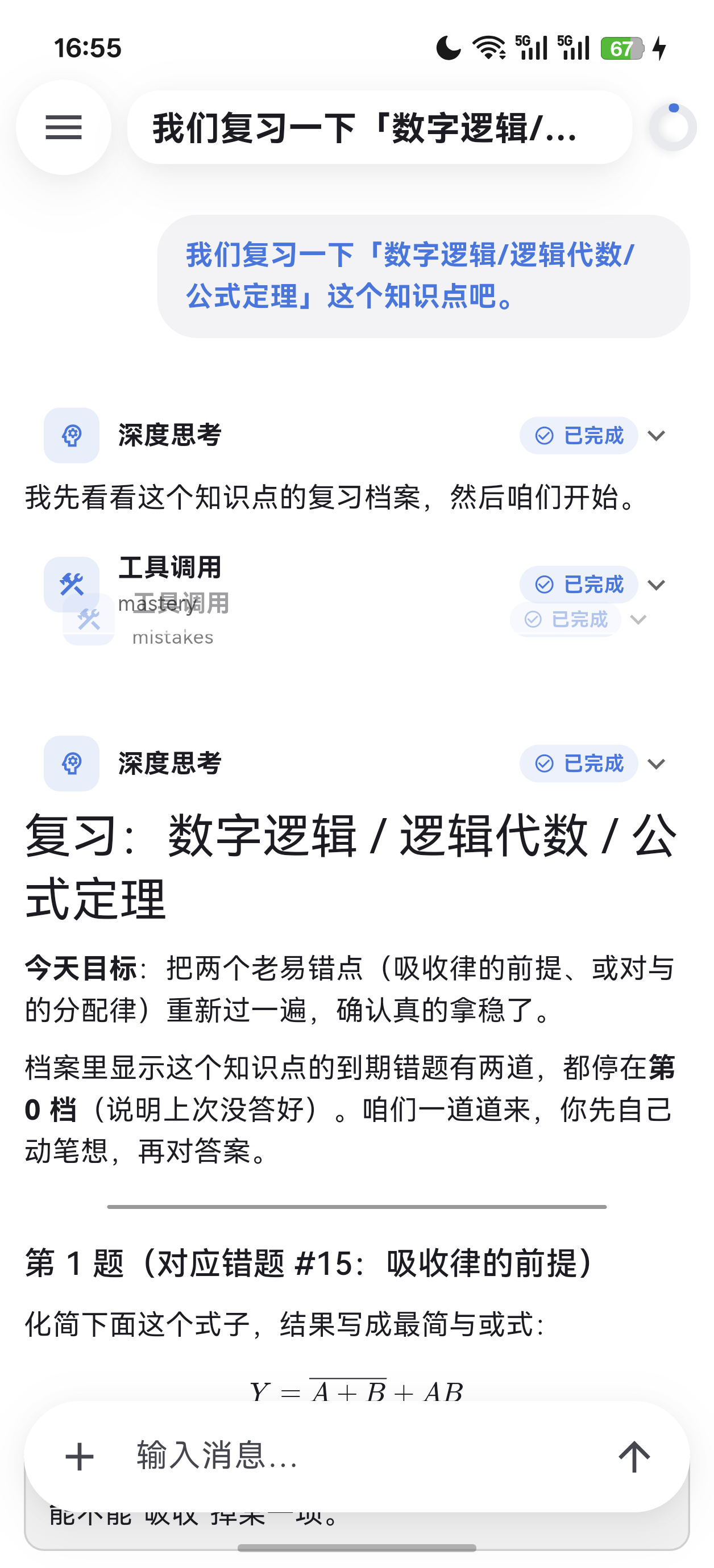 复习流程 从发起到出题 |
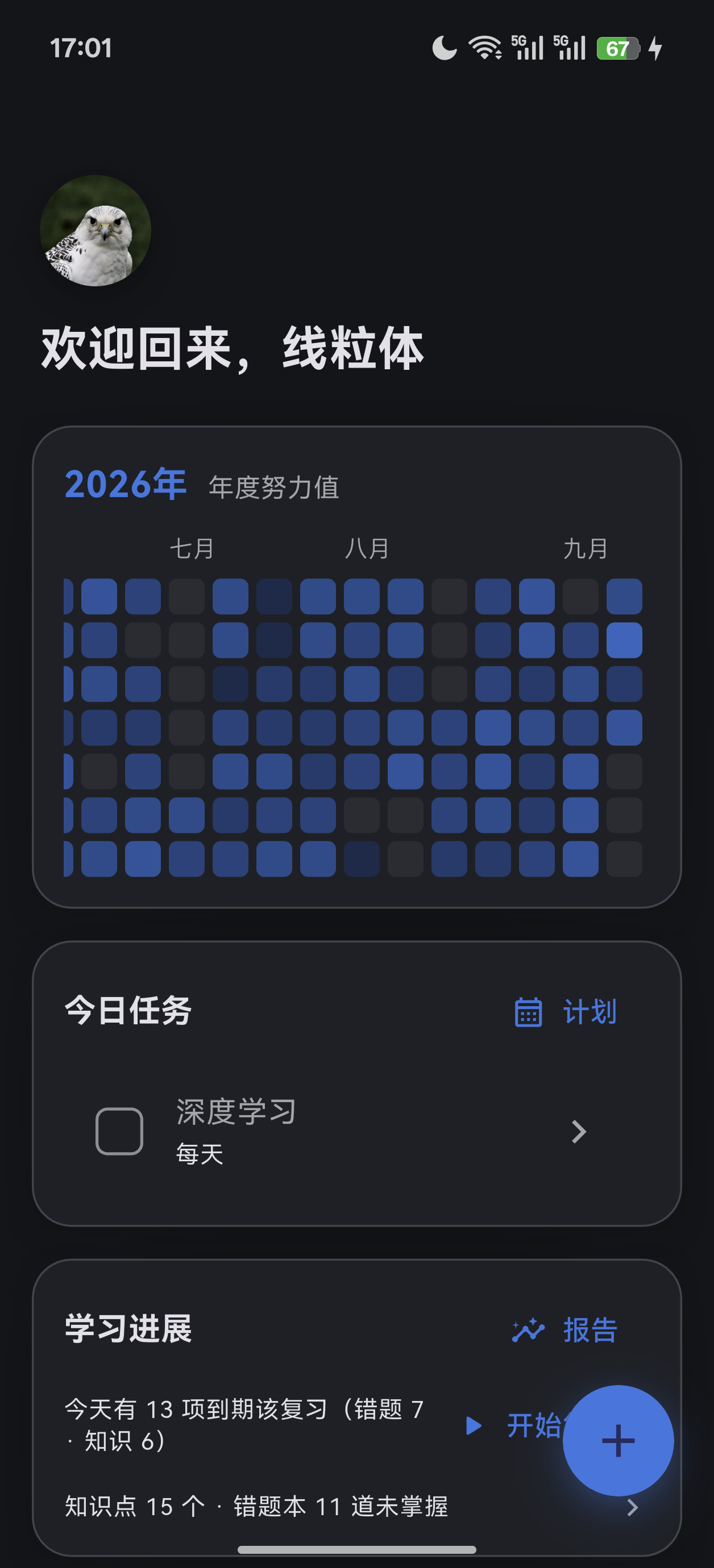 深色模式 · 主页 对照浅色截图 |
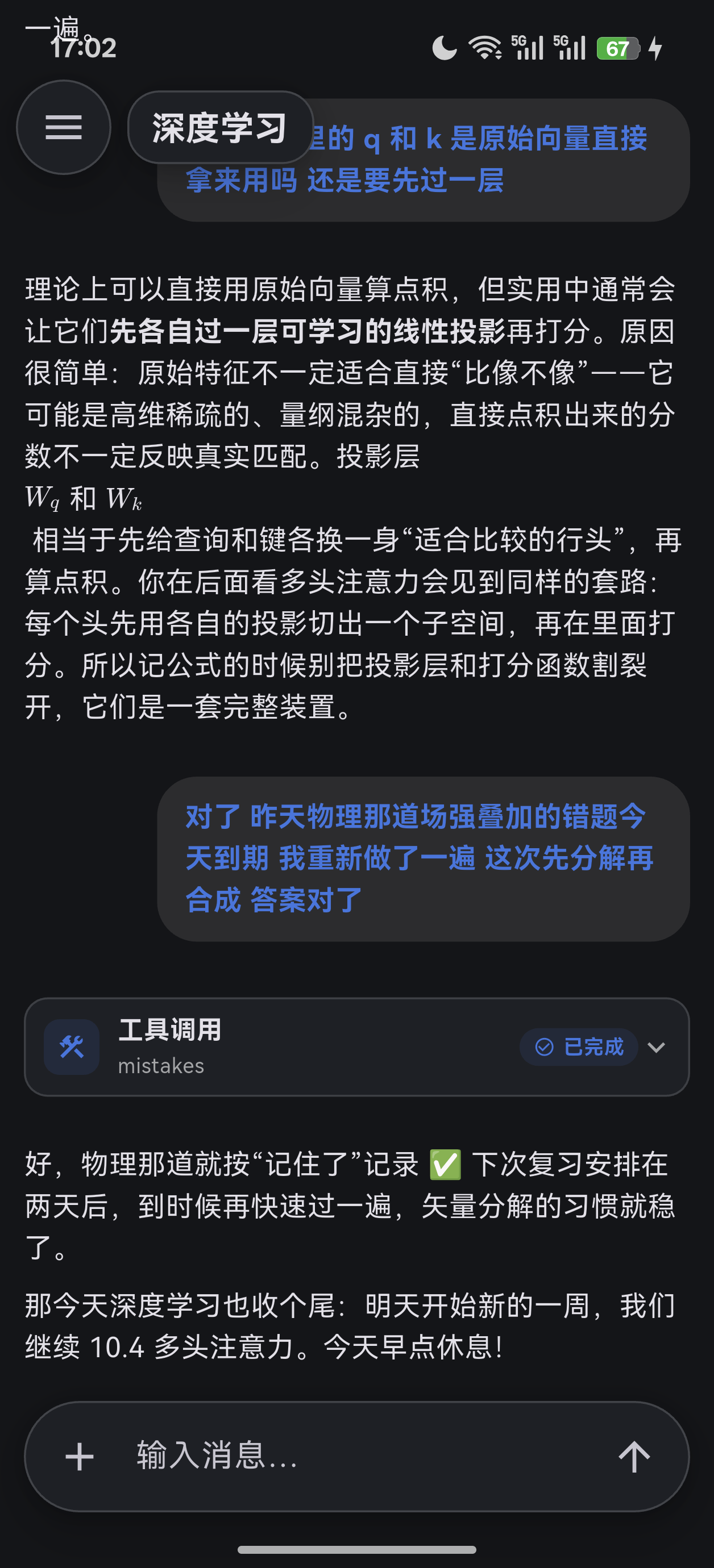 深色模式 · 对话 同一屏、同一滚动位置 |
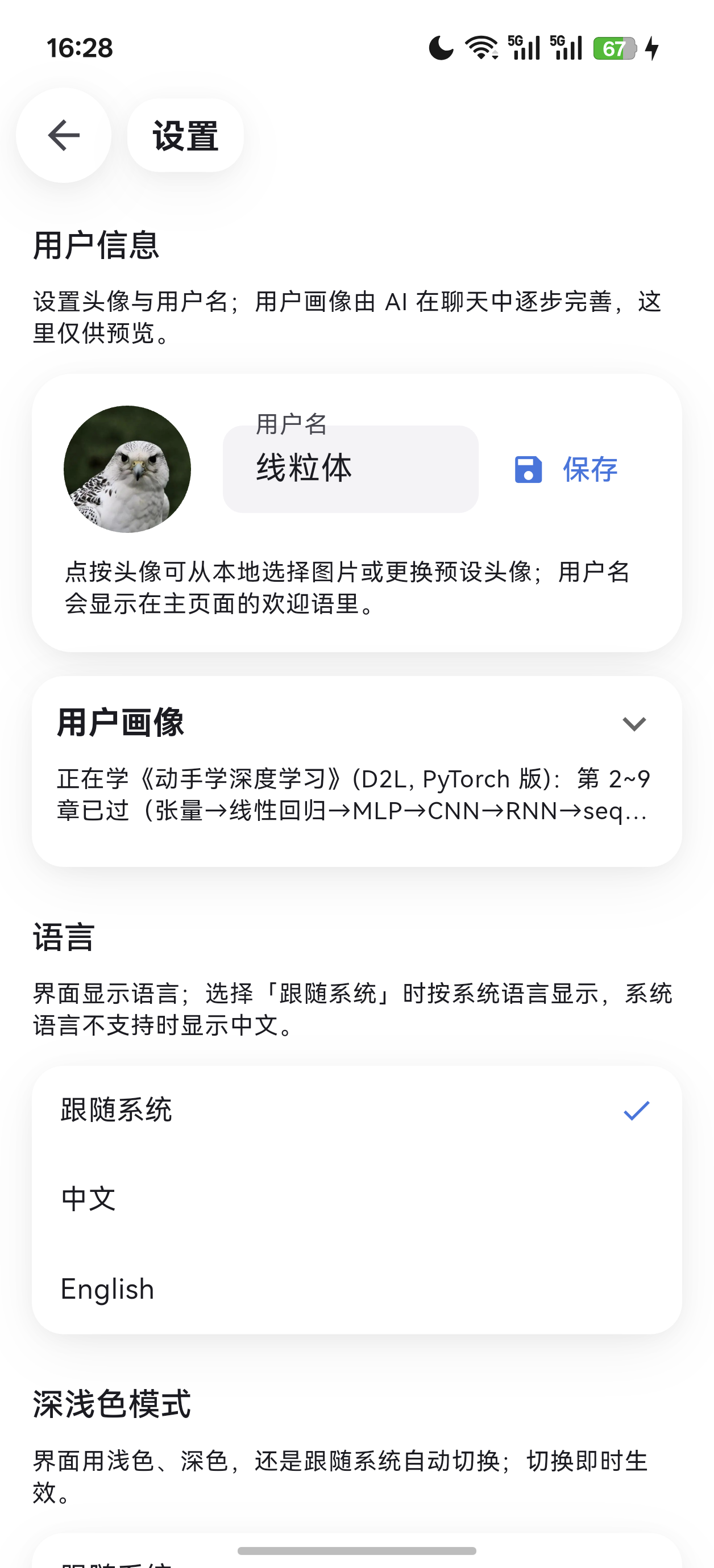 设置 用户信息 / 语言 / 主题 |
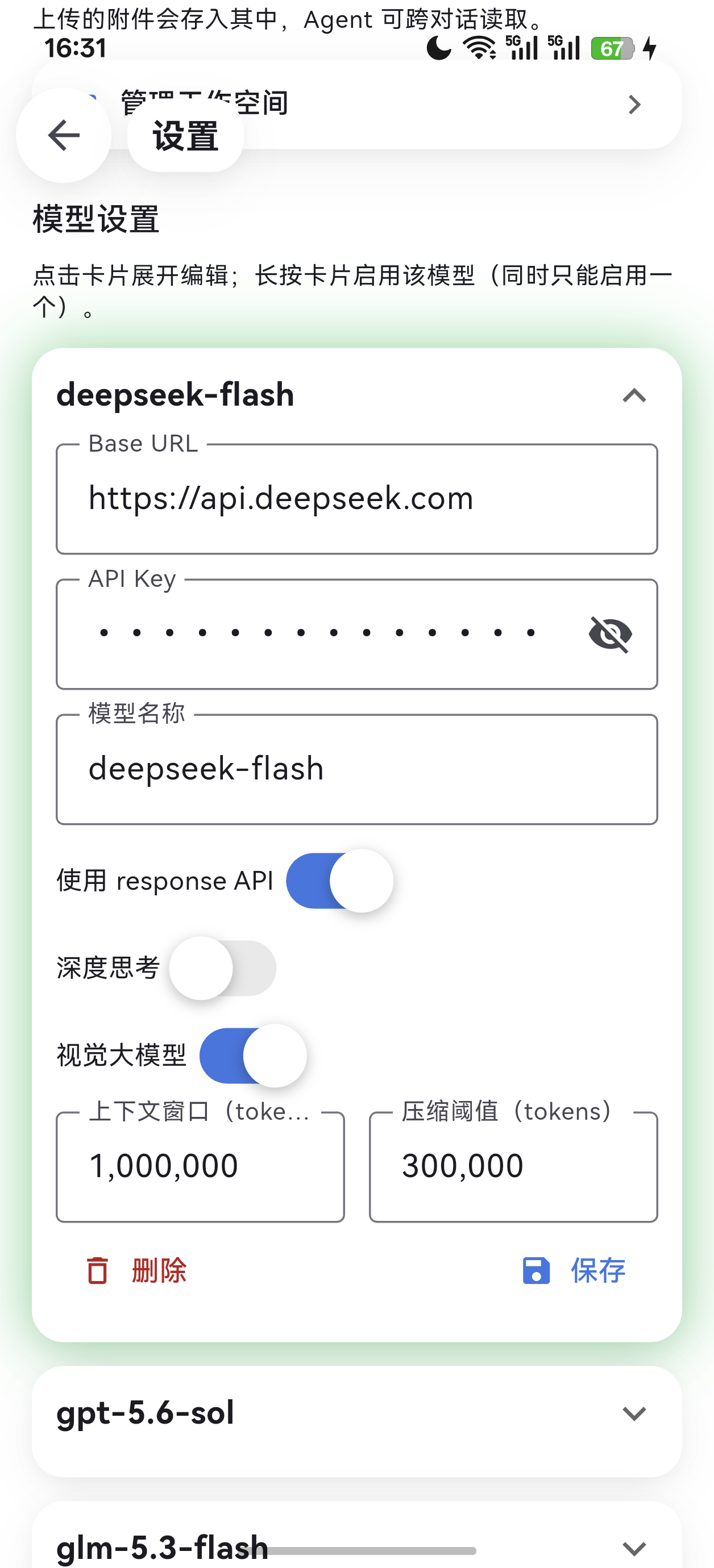 模型设置 任意 OpenAI 兼容端点 |
三、快速开始#
3.1 获取安装包#
方式 A:自己构建(推荐,可控制是否带 Python 沙箱)
前置条件:Flutter 3.44.4 stable(Dart 3.12.2)。
flutter pub get
flutter run -d windows     # 或 -d macos / 连接的安卓设备
Windows 上日常打包用仓库自带的交互式脚本 build.bat(双击即可,支持"平台 / 打包还是装机 / 带不带 Python 沙箱 / 渲染后端"四项菜单):
# 自动模式:平台(1=Windows 2=安卓) 操作(1=打包 2=直接安装) 沙箱(1=带 2=不带) 渲染后端(1=OpenGL 2=Vulkan)
.\build.bat auto 2 1 1 2      # 安卓 APK、带 Python 沙箱、Vulkan
方式 B:构建不含 Python 的"精简版"
powershell -NoProfile -ExecutionPolicy Bypass -File tool/build_without_python.ps1 -Platform apk # 或 -Platform windows
脚本会在 build/without-python/ 下创建全新的隔离构建目录,移除 Python 插件依赖、原生运行时与执行实现,重新生成插件注册表,并审计生成的安装包——只有审计通过才把产物路径写入 build/without-python/latest-apk.txt(Windows 为 latest-windows.txt)。原工作区与带沙箱产物不会被覆盖。
⚠️ 不要在原生工作区单独传
--dart-define=PYTHON_SANDBOX=false:这个参数不能移除原生依赖,现已在编译期直接拒绝。真正不含 Python 的版本必须走上面的隔离流程。
支持平台
| 平台 | 状态 |
|---|---|
| Android | ✅ 主力平台,真机验证充分(含 120Hz 高刷解锁、Vulkan/OpenGL 渲染后端构建期切换) |
| Windows | ✅ 完整支持(1100×720 居中窗口,宽屏自动左右分栏) |
| macOS / iOS | ✅ 代码与工程齐备(未做真机长时间压测) |
| Linux | ⚠️ 工程目录已生成,未验证 |
| Web | ❌ 不支持(SQLite 存储层会明确抛出不支持) |
3.2 首次启动#
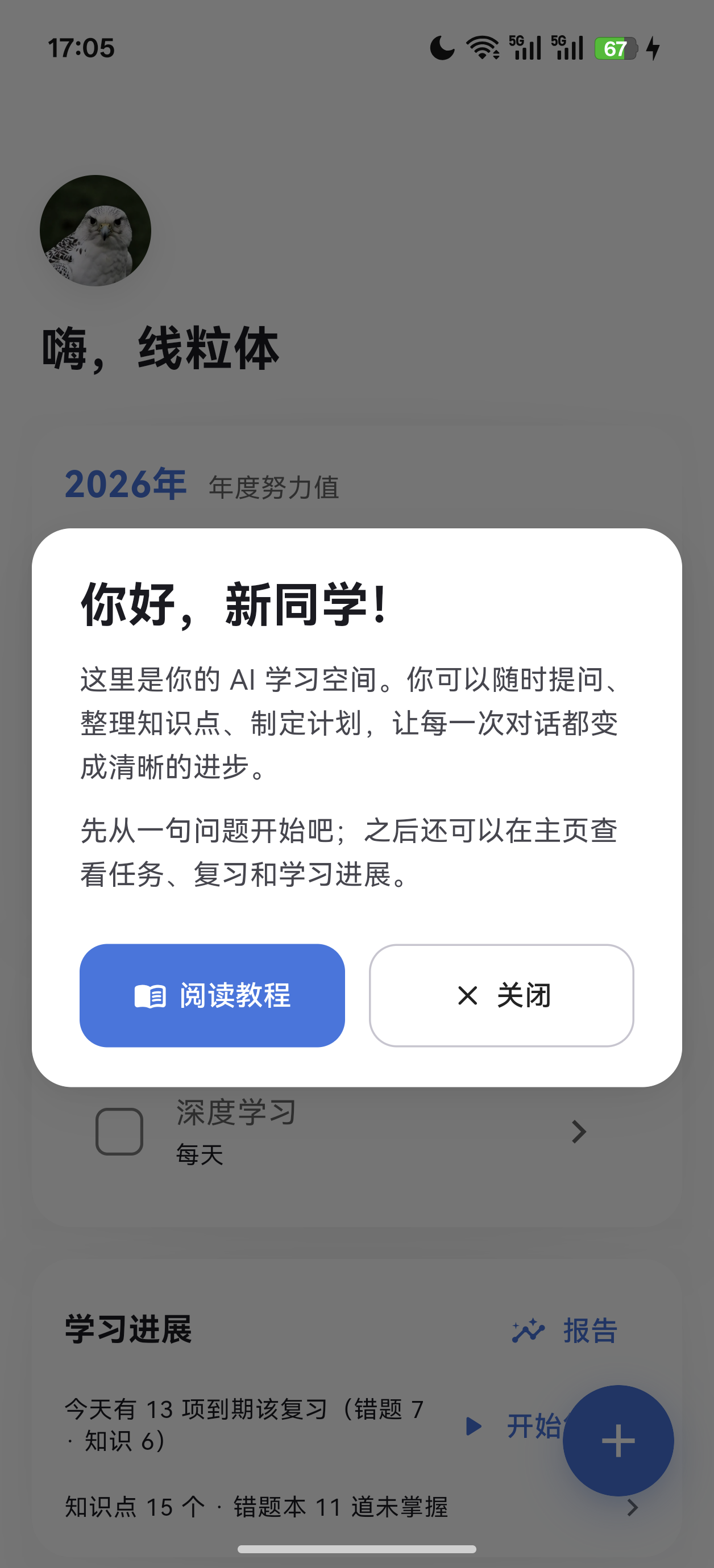
第一次安装(以及每次覆盖安装)后的首次启动,会弹出一次欢迎面板:
「你好,新同学!这里是你的 AI 学习空间。你可以随时提问、整理知识点、制定计划,让每一次对话都变成清晰的进步。」
- 面板只在每次安装后显示一次(用安装指纹识别,同版本覆盖安装也会再显示一次),面板打开期间杀进程也不会重复出现。
- 底部左侧蓝键「阅读教程」、右侧白键「关闭」。
- 📌 当前版本的「阅读教程」按钮尚未接入应用内教程页(点击只会通知宿主,欢迎面板保持打开)。教程请看本文档第四章;后续接入教程路由后会自动改为跳转并关闭面板。
3.3 配置模型(必做第一步)#
应用首次启动就会内置一个默认模型配置(Base URL https://api.deepseek.com,模型名 deepseek-v4-flash),但没有 API Key。此时在聊天页发送任何消息,都会收到这条提示:
尚未配置 API Key。请点击右上角「设置」图标,填写 Base URL 和 API Key 后再开始聊天。
(提示语里的"右上角设置图标"是历史文案:目前进设置的正确入口是主页左上角的头像,见下一步。)
操作步骤:
- 回到主页,点左上角的头像 → 进入「设置」。
- 向下滚到「模型设置」板块,点开模型卡片展开编辑。
- 依次填写:
- Base URL:兼容 OpenAI 格式的接口地址,如
https://api.deepseek.com、https://api.openai.com/v1或你自建的中转服务。 - API Key:点右侧眼睛图标可以显示/隐藏明文。密钥只保存在本机,不会上传到任何服务器。
- 模型名称:如
deepseek-v4-flash、gpt-4o、qwen-max等。
- Base URL:兼容 OpenAI 格式的接口地址,如
- 需要更多模型时点「添加模型」;长按卡片即可把某个模型设为当前启用(同一时间只有一个启用)。
- 改完直接返回,设置自动保存(卡片收起即写入)。
模型卡片上还有四个开关(都按模型独立记忆):
| 开关 | 说明 |
|---|---|
| 使用 response API | 走服务商的 /responses 端点(若该服务商支持)。开启后可使用「Responses API 内置联网搜索」。应用每次全量重放上下文,不依赖 previous_response_id 链式参数。 |
| 深度思考 | 混合推理模型(如 DeepSeek v4 系列)的思考开关。开和关都会显式发送参数——因为这类模型"省略参数"等于默认开启思考,所以"关"会显式发 thinking: {type: disabled} / reasoning: {effort: none}。开启后,思考过程会以「深度思考」卡片实时展示在对话里。 |
| 视觉大模型 | 开启 = 图片直接交给主模型看(要求主模型支持图片输入),不再走 OCR;关闭 = 图片交给下方配置的独立视觉模型做 OCR。 |
| 上下文窗口 / 压缩阈值(tokens) | 填了窗口值后,顶栏会出现上下文占用圆环,可在面板里一键「压缩上下文」把旧对话总结归档。填 0 = 关闭。 |
3.4 可选的增强配置#
都在「设置」页里,不配也能正常用:
- 视觉模型(可选):配置后,PDF 里提取不到文字的扫描页/图片页会先渲染成图片,由视觉模型转录成文字;不配则这些页面跳过(正文里留可见的占位标记)。
- 联网搜索设置:内置六家后端——Responses API 内置搜索(服务端原生执行,无需另填 Key)、Tavily、Brave、DuckDuckGo(免费免 Key)、Azure Bing、百度全网搜索。搜索词会逐次向你确认后才发出。
- 努力值评估(可选):开启后每天调用一次模型,评估昨天及更早的学习质量分,与本地四因子分各占一半合成热力图分数(会消耗少量 token;评分结果永久保留,随时可关)。
- 复习强度:知识点复习的目标记忆保持率——宽松 85%(间隔拉长)/ 标准 90%(默认)/ 严格 95%(记得更牢)。错题本的阶梯复习是另一套自研调度,不受此项影响。
- 语言 / 深浅色模式:都支持「跟随系统 / 中文 / English」「跟随系统 / 浅色 / 深色」,切换即时生效(语言切换会作废一次提示词缓存,属预期代价)。
四、使用教程#
4.1 主页导览#
主页是你每天打开应用看到的第一个界面(窄屏时它也是返回键的终点)。从上到下:
- 头像:点它进「设置」。头像是应用内唯一可换的个人标识。
- 问候语:
您好,线粒体——问候词随机轮换,用户名取自设置页。 - 年度努力值卡(热力图):整卡可点,展开成完整的「年度努力值」页。卡面本身就是全年概览,颜色越深当天越努力。
- 今日任务卡:列出今天要做的计划任务,左侧方框可直接勾选(周期任务按天记录,勾了今天不影响明天)。右上角「计划」按钮进「学习计划」页。
- 学习进展卡:
今天有 10 项到期该复习(错题 5 · 知识 5),右侧「开始复习」会新建一个对话并把复习任务交给 Agent;下方一行是知识点总数与未掌握错题数的概览,点整卡进「学习报告」。 - 最近对话:点开继续聊;长按整行会微微放大并泛红光,松手弹出删除确认框(删对话会级联清掉它的附件文档)。
- 右下角蓝色
+:开始新对话。
4.2 开始一次对话#
点 + 后,新对话页会从按钮位置形变展开(Material 风格的容器变换动画)。空对话时界面中央除了提示语,还会有一个工作空间选择器(可选)——选定后,本次上传的附件和生成的教案都会存进那个空间,且跨对话可读。
对话页几个值得知道的地方:
- 工具调用卡:Agent 每次调用工具(查错题、读文档、改计划……)都会折成一张玻璃卡,显示工具名与「已完成 / 调用中 / 失败」,点开可看参数与结果。工具卡是可追溯的账本,不是装饰。
- 深度思考卡:模型有思考产出时出现,流式实时刷新,正文一开头就自动标记完成。
- 顶栏三件套:
- 左侧菜单键 = 回主页;
- 中间标题胶囊 = 「消息目录」,点开可跳到历史上任意一条你发过的消息(长对话找旧内容最快的方式);
- 标题右侧圆环 = 上下文占用,点开是占用面板(分类图例 + 本轮 token 用量 + 一键「压缩上下文」,把旧对话总结归档后继续)。
- 选区操作:在任意回复里选中文字,会弹出「复制 / 全选 / 追问」——点追问会把选中内容作为引用块自动带进你的输入框(超长截取前 2000 字),非常适合"这一段再展开讲讲"。
- 中断:模型输出期间发送键会变成中断键,点了立刻停(走 CancelToken)。
- 排队:输出期间你仍然可以发消息,它们进入该对话的内存队列,等当前这轮结束自动按顺序发出;排队小卡可编辑、可取消。
- 续跑确认卡:单轮最多连续执行 20 步,超过会插一张「Agent 已连续执行 N 步(任务可能较复杂,也可能偏离了方向)」的卡片,由你决定「继续执行」还是「停止」——这是防失控烧 token 的保险丝。
- 确认卡:Agent 想改你的学习计划、写工作空间文件、弹选择题、提交教案提案、请求执行 Python 代码时,都会插入一张确认卡。拒绝就是真的不生效(拒绝后相关草稿会被清理),并且"上次授权"不会自动继承到下一次。
工具调用卡 · 展开态 参数 + 结果;上面是「深度思考」卡 |
消息目录 点标题胶囊展开,跳到任意一条历史提问 |
上下文占用 分类图例 + 本轮用量 + 一键压缩 |
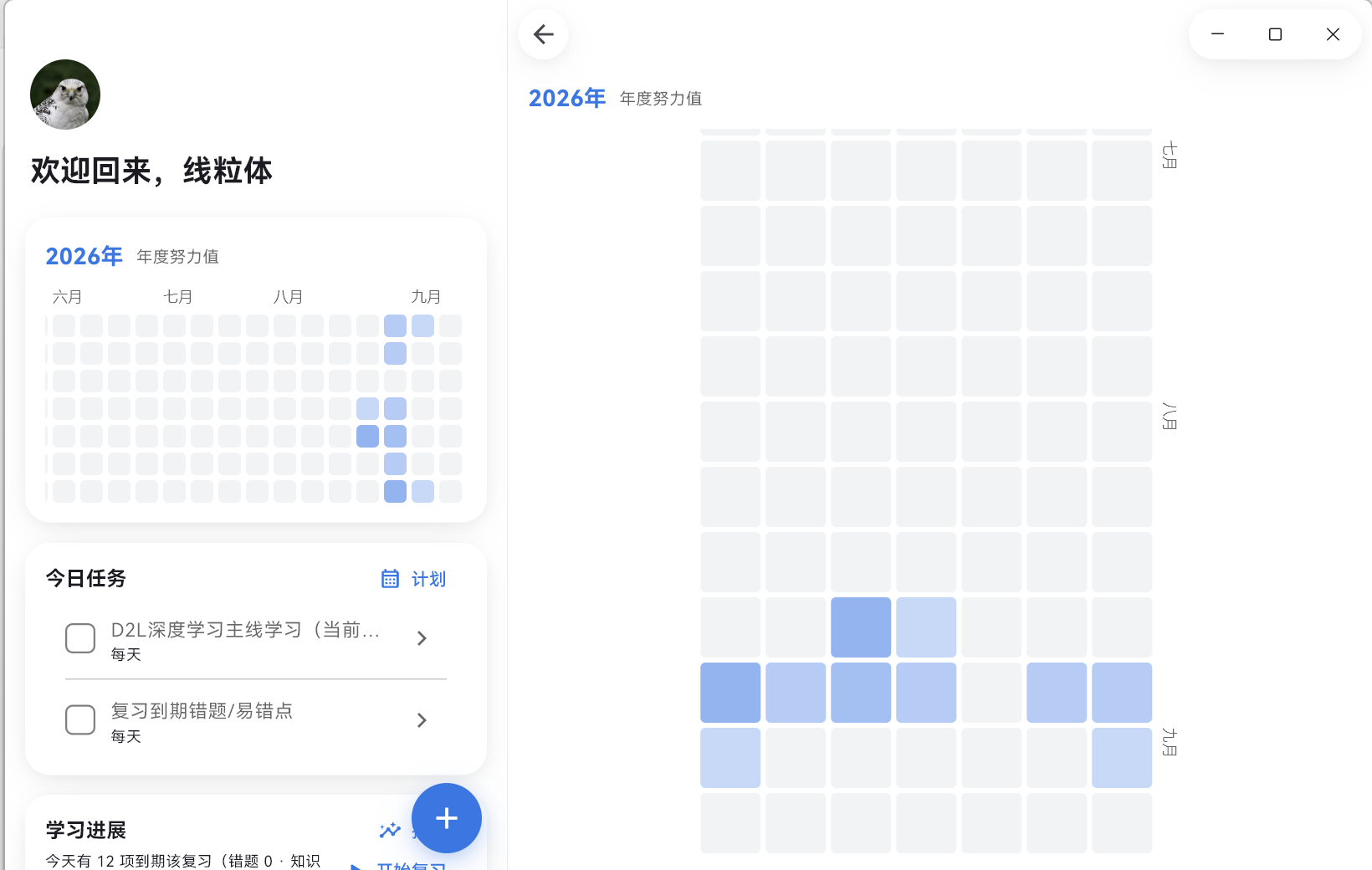
Windows 宽屏分栏:窗口 ≥1000px 且宽高比 ≥4:3 时自动左右分栏——左栏常驻主页,右栏在聊天 / 设置 / 计划 / 热力图 / 报告 / 详情页之间切换
4.3 发图片与文件#
点输入框左侧的 +,展开三个入口:图片(相册多选)、拍摄(系统相机;桌面端不支持时自动隐藏)、文件。
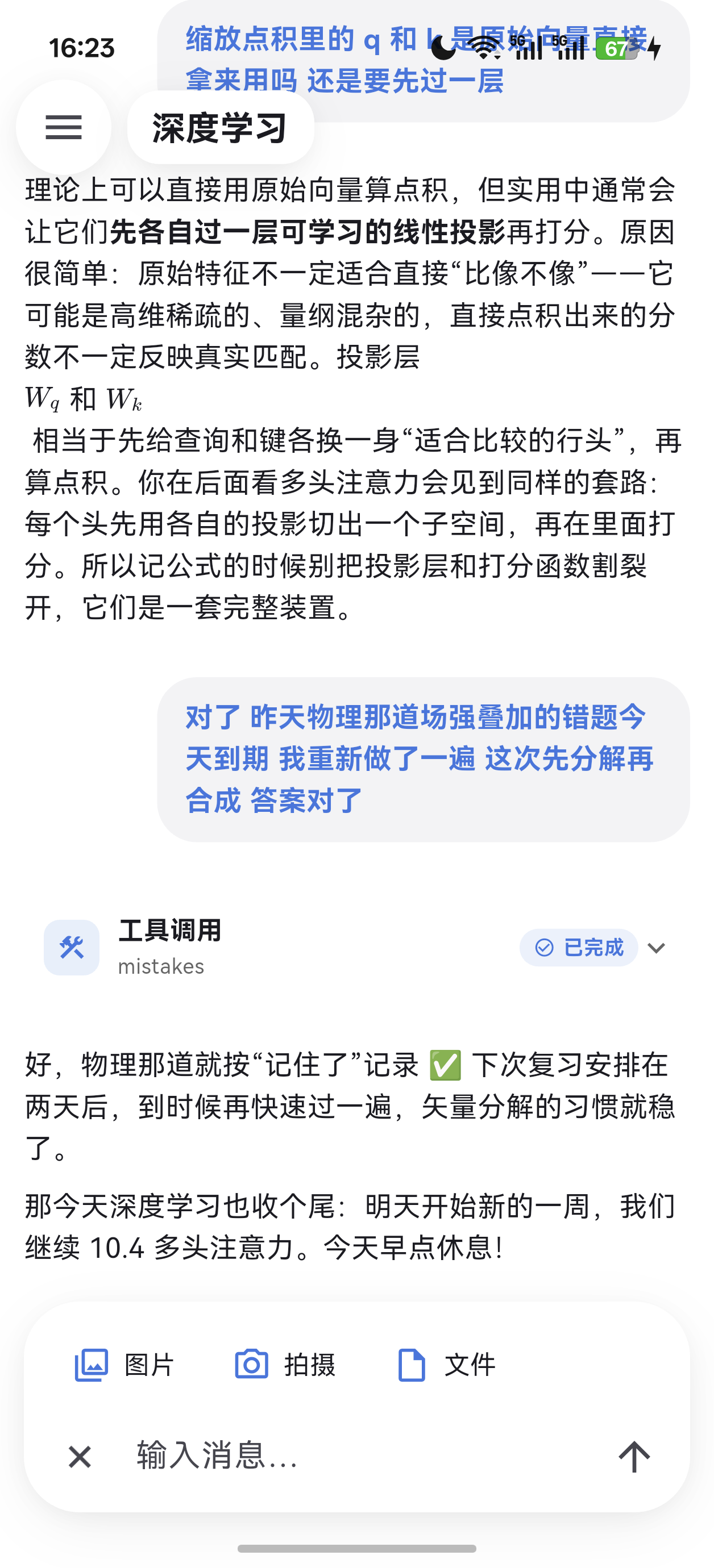
选中文件后会在待发区显示小卡,并按类型走不同解析路径:
| 类型 | 处理方式 |
|---|---|
| Markdown / TXT | 直接按 UTF-8 读取 |
| DOCX / PPTX | 纯 Dart 解压 + 提字(不依赖 Office) |
| 用 PDFium 逐页提字;提不出文字的扫描页(CID 字体缺 ToUnicode)在配置了视觉模型时渲染成图走 OCR,未识别页在正文留下可见占位符 | |
| 图片 | 无文字层,默认走视觉 OCR;若开启了模型卡的「视觉大模型」开关,则原图直接交主模型看 |
发送时,全文(不截断)落库到本地 documents 表,你的消息里只带一行引用标记 【附件 N:文件名(摘要),文档编号 doc_…】;模型需要正文时用 read_document 按编号分片读取(默认 2 万字、上限 5 万),长文档先 search_document 关键词定位再跳读。这样即使是一本 800 页的教材,也只会按需读入上下文。
解析全过程都有超时兜底(打开 / 提字 / 渲染 / 识别),必然终止不会卡死。旧版
.ppt/.doc不支持,请另存为新格式。
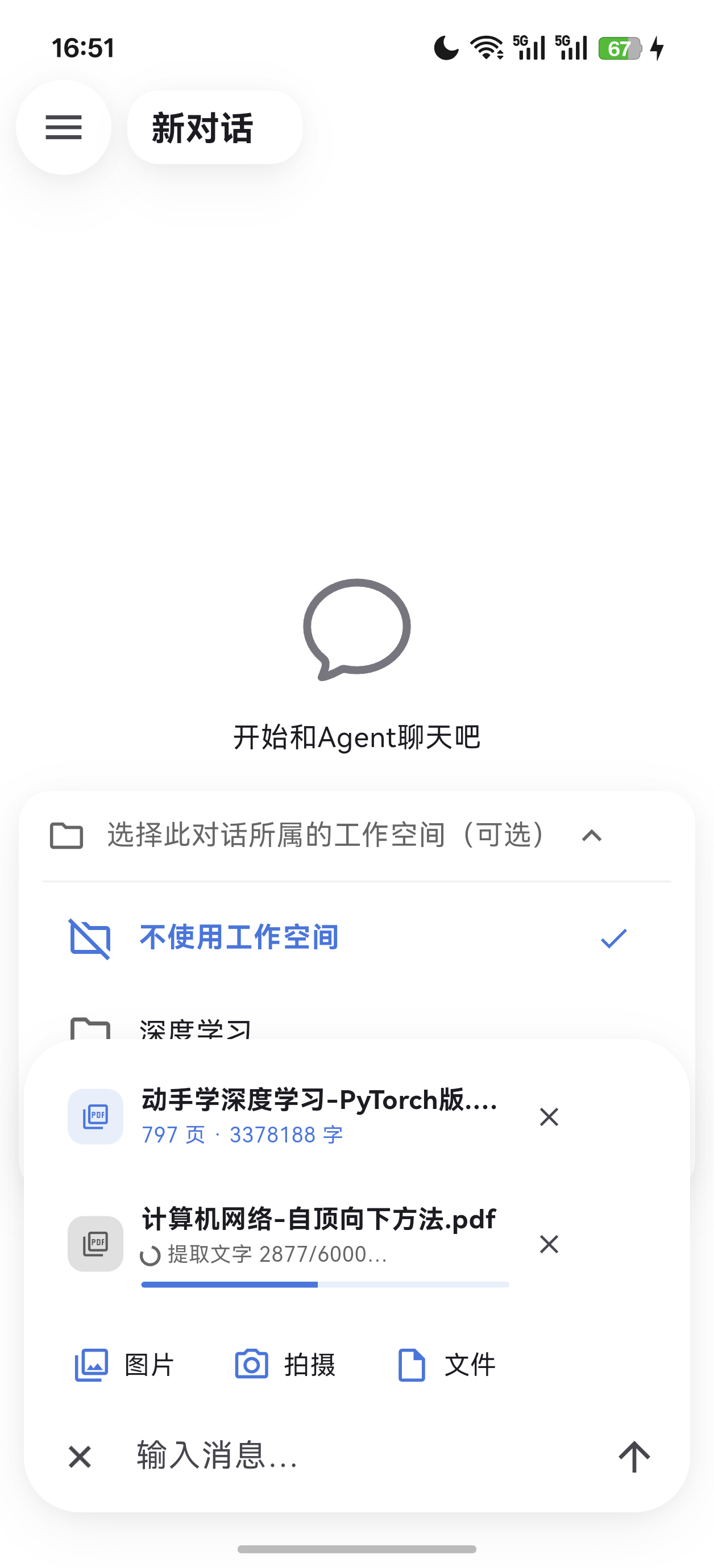
待发区小卡实时显示解析阶段:提取文字 2877/6000…(上面那张 797 页的已完成,显示 797 页 · 3378188 字)
4.4 知识点掌握度与错题本#
这是本应用和普通聊天应用最大的区别:它会自己记账。
- 你在对话里学习、测验、交作业,Agent 会经
mastery工具登记知识点,经mistakes工具收录答错的题(学习类问答中答错应立即收录,判分由模型结合参考答案判断)。 - 每个知识点有一张 FSRS 复习卡:登记时只给一次"初印象"(easy / normal / hard),之后每次复习只回报「记住了 / 忘了」和难度感受,模型不打绝对分——防虚高是结构性保证,而不是靠提示词。
- 展示的「掌握概率」= 从最近一次复习算起、满 30 天时还记得的概率。它只随复习事件变化,平时不会自己漂移。
从主页的学习进展卡(点卡片或右上角「报告」)进入「学习报告」,可以看到三块面板:
- 知识点 30 天后的掌握概率:薄弱在前,百分比按档位着色(绿 / 黄 / 红)。标题行的放大镜支持搜索,任一层级或备注都能匹配(如
深度学习/注意力机制/Transformer,搜"注意力"或"Transformer"都行)。列表在面板内独立滚动,几百条也流畅。 - 错题本(N 道未掌握):显示错题内容、到期状态与「复习到第几档」。错题行走的是 1 → 2 → 4 → 7 → 15 → 30 天阶梯:记得进一档、连续答对跳两档、忘了退一档、连错两次重置,走完全程自动标记"已掌握"。每一行都可以点进错题详情页(作答对照 + 错因解析 + 复习进度;详情页是只读的,复习动作仍走聊天)。
- 教案本(N 份):见 4.8。
每个知识点行都能点进详情页:
- 顶部大字是掌握概率,右侧标注当前记忆保持率与到期状态;
- 中间是可拖动的记忆衰减折线图:默认窗口是"过去 30 天 → 未来 45 天"(覆盖下次复习标记),左右拖动可以回看全部历史;两次复习之间的曲线是按 FSRS 闭式公式逐像素现算的,不是逐天存点;
- 下方是记忆稳定度("约还能记 3 天")、难度、以及复习流水(每次复习的时间、记住了还是忘了、难度感受);
- 右上角「复习」按钮:新建对话并以你的身份发出「我们复习一下「XXX」这个知识点吧。」,把复习交给 Agent 引导。
发起复习的两个入口:主页「开始复习」(一次性复习今天到期的全部内容,会新建对话并发出「我们开始复习今天到期的内容吧……」)、知识点详情右上角的「复习」(同样新建对话)。错题详情页只展示复习进度,答错/答对的实际调度仍由聊天里的 Agent 完成。
错题详情 作答对照(我的答案红 / 正确答案绿)+ 错因解析 + 复习进度 |
复习流程 发起复习 → Agent 调档案 → 逐题出题(第 1 题 / 小提示 / 提问卡) |
4.5 学习计划#
计划的写入权在你手里——Agent 只能提交提案,不能直接落库。
怎么用: 直接说人话,例如
开学了 课又多起来了 想冲十二月的六级 帮我整个能落地的安排呗
Agent 的 study_planner 技能会:联网调研内容量 → 用提问卡问你截止时间和日均投入 → 做可行性校验(总预算 = 距截止天数 × 日均投入,不够就先把三个选项摊在你面前,而不是硬排一个做不到的计划)→ 在聊天里输出计划全文(循环任务 ≤ 4 条打底 + 13 周里程碑,绝不每天各排一条)→ 你批准后才用 12 条逐条宽容校验,任一不合法整体拒绝,全合法才弹一张逐行汇总确认卡)。add_batch 一次写入(1
学习计划页:自绘月历,有任务的日期下方带小圆点;点任意日期,下方列出当天任务(计划页是只读的,勾选完成在主页今日任务卡上做——周期任务按"发生天"一行一存,所以今天勾了不影响明天)。左上角 « ‹ › » 分别跳上一年 / 上一月 / 下一月 / 下一年。
相关技能还有
learning_roadmap(学习路线规划):当你说"想学 AI 但不知道从哪开始"时触发,先联网调研知识体系 → 提问卡确认方向 → 输出路线图全文 → 你确认后落成工作空间里的 Markdown 文件(需已绑定工作空间)。它与study_planner组成 WHAT(学什么)/ WHEN(什么时候学) 的闭环。
一次写入前的逐行汇总确认卡:6 条任务各自带开始日期 / 频率 / 重要性,底部「拒绝 / 同意」——拒绝就真的不写库
4.6 年度努力值#
主页的热力图卡点开就是「年度努力值」页:全年每天一个格子,按分数分十档浓度(0 分灰,1~100 每 10 分一档)。
点任意格子,页面顶部会展开当天的详情卡:
- 当天总分(本地分 · LLM 分各是多少);
- 四个因子的分项与依据:
- 投入度(40 分):当天你的消息条数(对数缩放);
- 专注度(30 分):按消息间隔 > 30 分钟切段估算的学习时长,120 分钟封顶;
- 执行力(20 分):当天完成的计划 × 重要性加权和;
- 坚持度(10 分):连续活跃天数,14 天封顶;
- 开启了「LLM 每日评估」时还会多一行模型给出的当日点评。
选中的格子会高亮成青绿色,再点同一格收起。热力图默认把今天所在列贴到可视区末端,可左右滑动回看全年。
4.7 工作空间:跨对话的项目文件区#
单个对话的记忆是孤立的,工作空间把"同一个项目"的对话串起来。
- 入口:设置 → 「工作空间」→「管理工作空间」。
- 新建一个空间(名字类似项目名,例如"深度学习"),然后在新对话的空态里选中它。
- 之后这个对话里上传的附件、以及生成完成的教案,都会自动存进这个空间的文件区(文件按
wf_编号管理,Agent 读/搜/改/删都用编号定位,跨对话可读)。 - 文件行可点:
- 桌面端 → 复制到临时目录后用系统默认应用打开;
- 移动端 → 在应用内预览(Markdown 按渲染、其余纯文本)。
- 「删除工作空间」会连同其中的文件一起删除,不可恢复。
未绑定工作空间的对话,文件类工具集不会注册,Agent 也就无法创建文件——这是刻意的边界。
4.8 生成教案#
对 Agent 说一句「帮我生成一份关于……的教案」即可。流程被刻意拆成两段,避免"一上来就生成一万字垃圾":
- 提案:Agent 先选课型模板(新授课 / 习题课 / 复习课 / 概念课 × 简版 / 标准 / 详尽三档),产出学习目标、备课依据、环节清单、成本估算,并落成一份草稿 + 空环节壳(这一步不生成正文)。
- 确认:插入教案提案确认卡,你点「同意,开始生成」后正文才逐环节生成(拒绝会自动清掉草稿)。
- 正文:Agent 按顺序逐环节写入;你手动改过的环节会被标记「你改过」,默认不覆盖(除非你要求重写)。
- 就绪:全部环节完成后自动转为"已就绪",并幂等同步成工作空间里的
教案-<课题>.md。 - 管理:学习报告 →「教案本」→ 点进教案详情页,可以看课题、目标、备课依据、成本、逐环节 Markdown 正文,并导出 Markdown;每个环节还有「重写」入口(会新开一个对话,并继承原对话的工作空间绑定)。
教案提案确认卡 学习目标 / 备课依据 / 环节清单 + 「同意,开始生成」 |
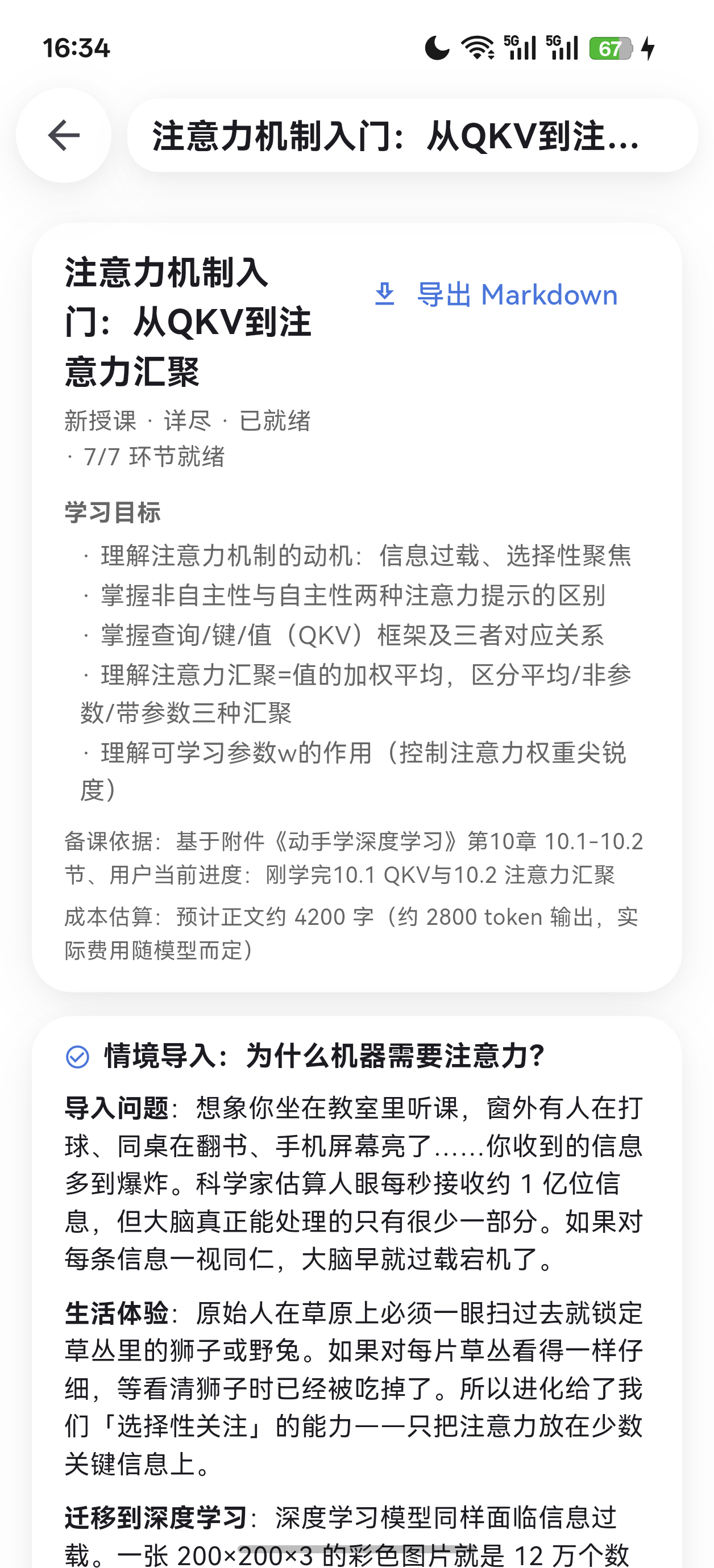 教案详情页 课题 + 学习目标 + 成本估算 + 逐环节正文 + 导出 Markdown |
4.9 设置逐项说明#
入口:主页左上角头像。(设置页也是宽屏右栏的一个槽位。)
| 板块 | 作用 |
|---|---|
| 用户信息 | 换头像(本地图片或预设头像)、改用户名(显示在主页问候语里)。 |
| 用户画像 | AI 在聊天中逐步完善的"你是谁、在学什么"摘要,这里仅供预览;要改就直接在聊天里说。 |
| 语言 | 跟随系统 / 中文 / English(界面文案双语;AI 回复语言也跟随此设置)。 |
| 深浅色模式 | 跟随系统 / 浅色 / 深色。两端各有一整套配色,玻璃卡片在深色下有独立调校。 |
| Agent 设定 | 定义 AI 教师的角色与规则,只读——LLM 对它同样只读,谁都不能在聊天里改它。 |
| 技能 | 内置五个纯提示词技能:quiz_mode 出题测验、grading 作业批改、socratic_teaching 苏格拉底式引导、learning_roadmap 学习路线规划、study_planner 学习计划排期。只读展示,由 AI 按对话需要自动启用/停用(按对话分别记忆)。 |
| 工具集 | document(读/搜附件文档)、workspace(工作空间文件五工具)、web(联网搜索)、plan(学习计划)、python(沙箱执行,看构建是否带)。同样由 AI 按需激活,激活当轮立即生效。 |
| 工作空间 | 「管理工作空间」入口,见 4.7。 |
| 模型设置 | 见 3.3。 |
| 视觉模型(可选) | 独立配置一个视觉模型(Base URL / Key / 模型名),用于扫描页 OCR。 |
| 联网搜索设置 | 选服务商并填 Key(DuckDuckGo 免 Key)。 |
| 努力值评估(可选) | LLM 每日评估开关。 |
| 复习强度 | 85% / 90% / 95% 三档目标保持率。 |
| 关于 | 版本、Python 环境、渲染后端,见 4.10。 |
| 数据库 | 导出 / 导入 .xla 备份,见 4.11。 |
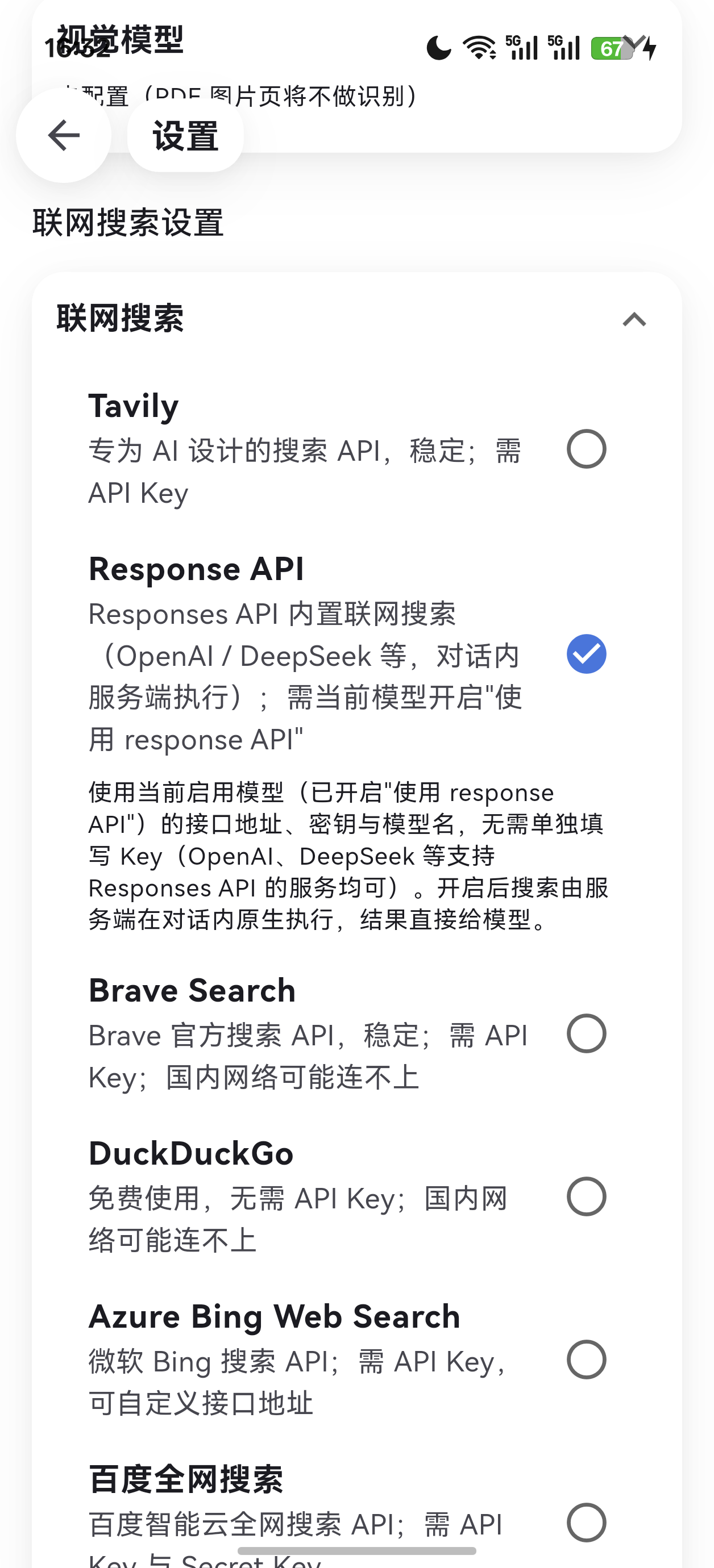 联网搜索设置 六家后端任选,Response API 可走服务端原生搜索 |
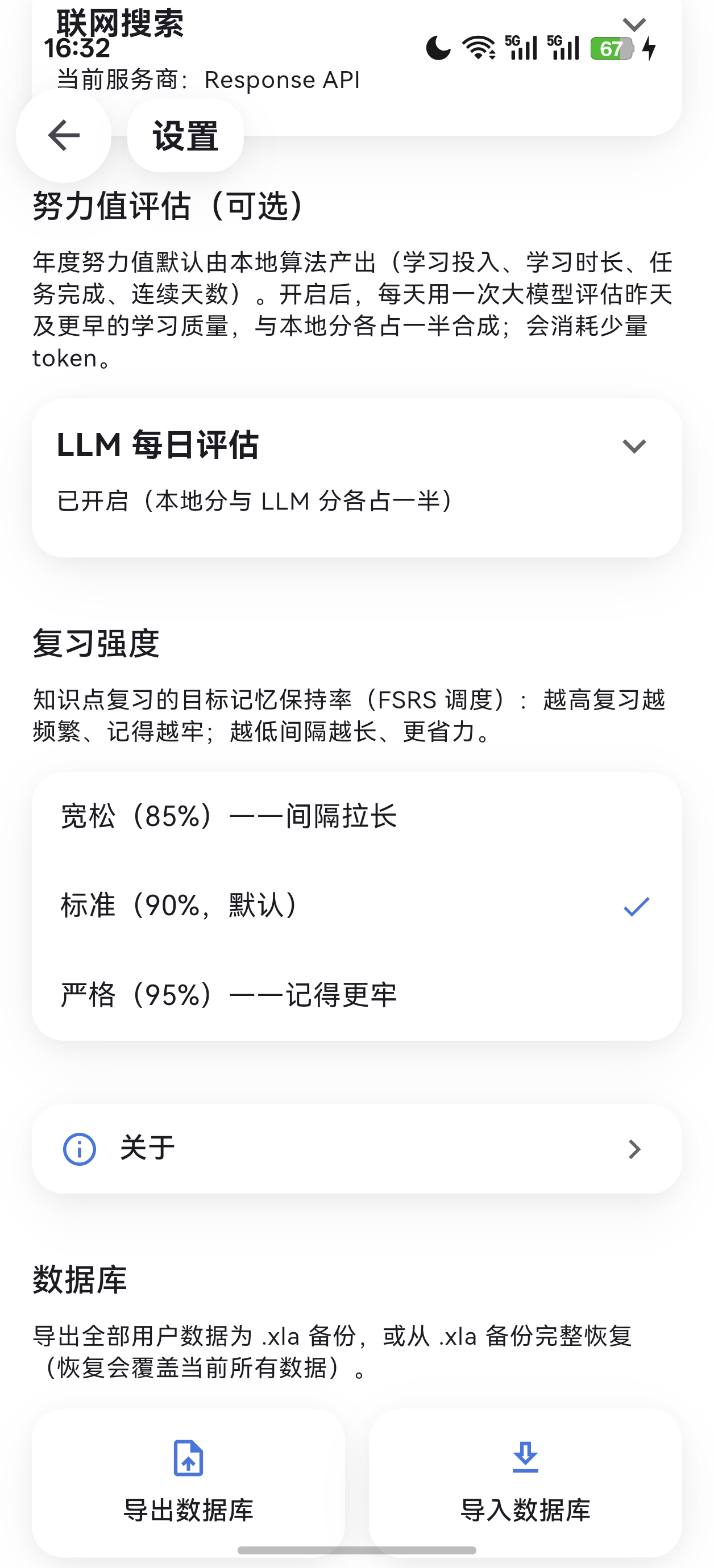 靠下的板块 努力值评估 / 复习强度 / 关于 / 数据库 |
python 工具集不在设置页开关,而是在每次执行前弹授权卡逐次同意——卡片会展示完整代码,拒绝则完全不执行:
run_python 授权卡:完整代码 + 「拒绝 / 允许执行」,同意只对这一次生效
4.10 关于页#
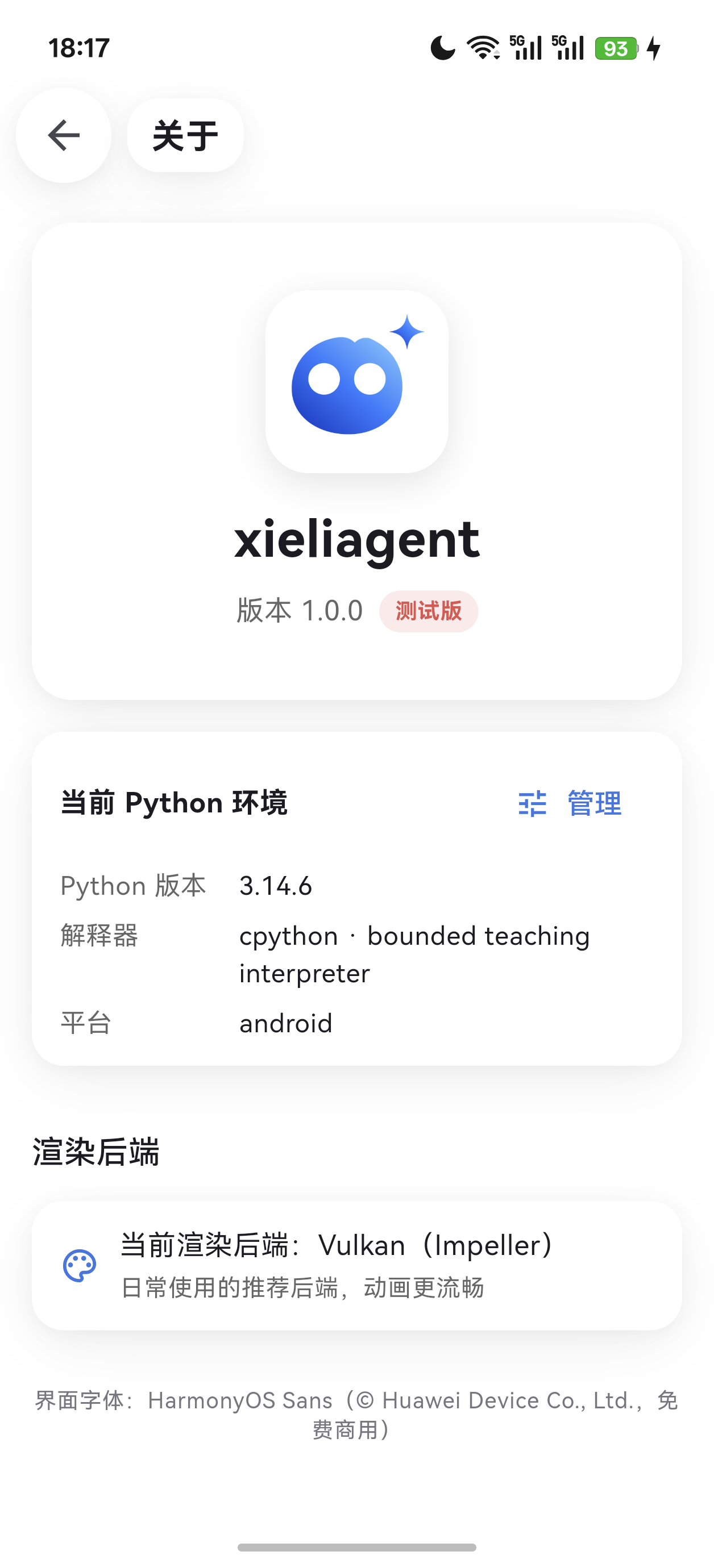
- 头卡:应用图标(亮色/深色两版随主题切换)+ 应用名 + 版本号(读 pubspec,构建时自动同步)+ 版本旁的发行标记胶囊:测试版(红,默认)/ 正式版(蓝)/ 演示版(黄)/ 演示测试版(橙)。普通构建零配置即测试版;出正式版需在构建时传
--dart-define=RELEASE_TYPE=official。 - 当前 Python 环境:Python 版本、解释器、平台;右上角「管理」进入 Python 环境管理页(全局启用开关 + 已安装库列表)。
- 渲染后端:显示本次构建选定的后端与一句用户视角的说明(Vulkan/Impeller 日常更流畅,OpenGL/Skia 在模拟器与兼容层上更稳)。
- 字体许可卡:
界面字体:HarmonyOS Sans(© Huawei Device Co., Ltd.,免费商用)+ 「查看许可全文」入口——点开即可在应用内读到协议全文。字体授权协议第 2 条第 1 款要求"在软件中显著声明"、第 4 款要求"在字体的任何副本中保留版权声明和本协议":三个字重的.ttf是随安装包分发的,所以协议全文也一并打进包里(assets/fonts/LICENSE.txt)。设置页不再放这条声明。
4.11 备份与迁移:.xla 文件#
设置页最下方的「数据库」板块:
- 导出数据库 → 生成一个
.xla文件(本质是 ZIP),内含:xieliagent.db的一致性快照(SQLiteVACUUM INTO)、shared_preferences.json、头像图片、工作空间文件正文、以及一份清单manifest.json。手机走系统分享,桌面弹保存对话框。 - 导入数据库 → 选
.xla→ 校验(清单格式 + SQLite 魔数 + 防路径穿越)→ 弹确认框 → 完整覆盖当前所有数据。 - 导入过程有分步进度(解析备份 → 关闭旧应用 → 覆盖数据库 → 恢复设置 → 恢复工作空间文件 → 恢复头像 → 重新打开 → 加载数据)。完成后应用会冷重启(桌面端自动拉起新进程,移动端由你重新点图标),这是为了保证重建后的数据一致(进程内热重建在部分真机上会卡死)。
带 Python 沙箱和不带沙箱的两个版本可以互导:无沙箱构建靠运行时能力标记整体降级,残留的
active_toolsets:['python']会被注册表过滤掉,不会出现"开关显示开着但沙箱起不来"的坏状态。
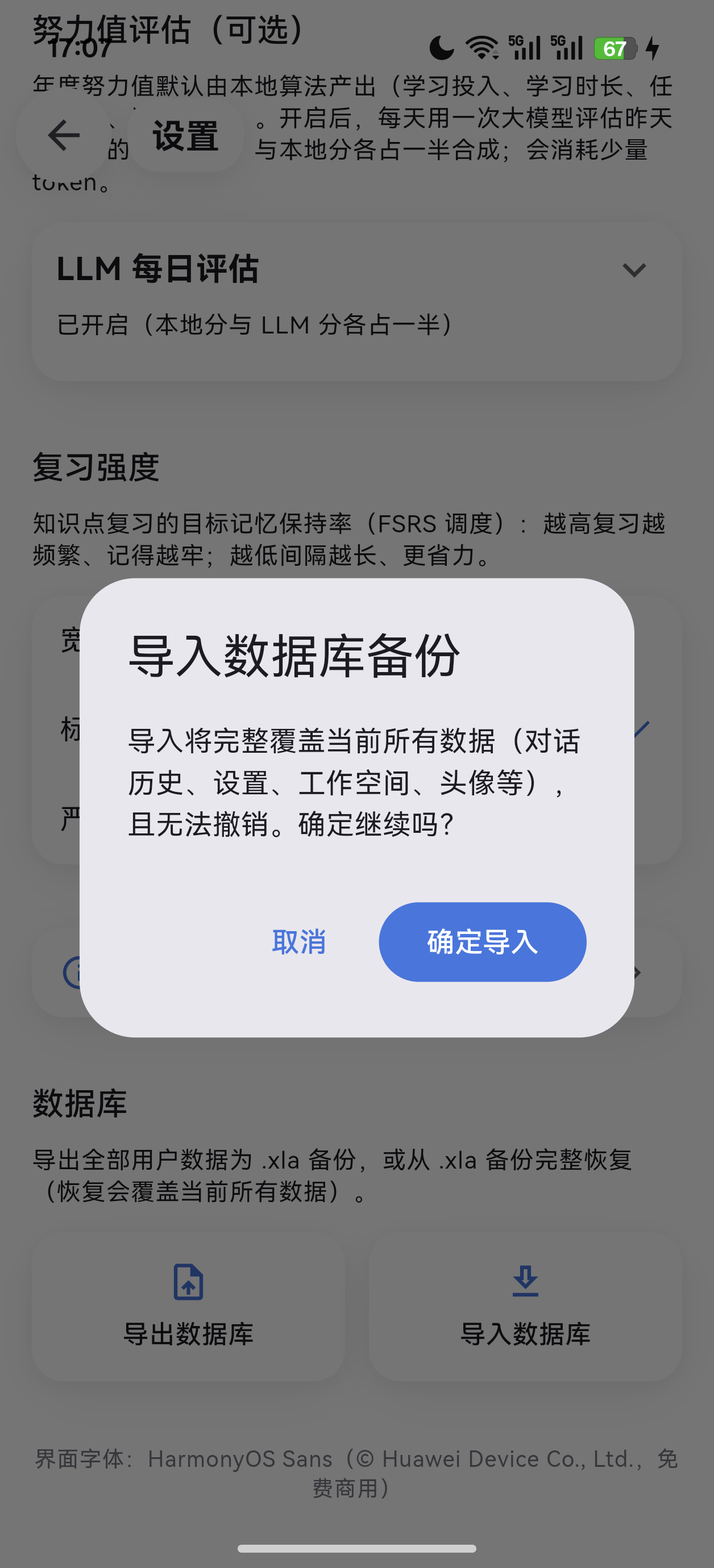
导入前的确认框:明确写出「完整覆盖当前所有数据,且无法撤销」——点「取消」没有任何副作用
4.12 键盘快捷键#
只要接了实体键盘就能用,而且全平台是同一套键位。
- 桌面端(Windows / macOS / Linux):原生支持;
- 手机 / 平板:插上蓝牙或 USB 键盘一样能用——快捷键走的是全局按键事件管线,代码里没有任何平台判断,键位、徽标、判定逻辑与桌面端完全一致;
- 纯触屏设备没有键盘可按,提示徽标自然不出现。
按住 Ctrl,可操作元素旁会浮出键帽提示徽标,照着按即可。
| 页面 | 快捷键 | 动作 |
|---|---|---|
| 主页 | Ctrl+U / Ctrl+H / Ctrl+P / Ctrl+F / Ctrl+S | 设置 / 年度努力值 / 学习计划 / 学习报告 / 开始复习 |
| 主页 | Ctrl+= | 开始新对话 |
| 主页 | Ctrl+1 ~ Ctrl+9 | 打开第 1~9 条最近对话 |
| 主页 | Ctrl+↑ / Ctrl+↓ | 滚动页面 |
| 对话 | Ctrl+⌫ | 返回主页 |
| 对话 | Ctrl+B | 打开「消息目录」 |
| 对话 | Ctrl+O | 上下文占用面板 |
| 对话 | Ctrl+J / Ctrl+K | 上下滚动消息 |
| 报告 | Ctrl+D | 展开/收起知识点搜索 |
| 报告 | F1~F9 | 依次打开列表里的行(各面板分别绑定) |
| 卡片 | F10 / F11 | 确认卡上的「拒绝 / 同意」 |
五、常见问题#
Q:发消息报"尚未配置 API Key"怎么办? 去设置 → 模型设置,填 Base URL、API Key、模型名,然后长按模型卡片把它设为启用。
Q:能用自己的中转/自建服务吗? 能。任何兼容 OpenAI Chat Completions(或 Responses)格式的端点都行,Base URL 填到版本路径即可(设置里会自动去掉末尾斜杠)。
Q:为什么模型有时候思考很久? 如果用的是混合推理模型(如 DeepSeek v4 系列),它默认就是思考模式。想关掉就去模型卡把「深度思考」关掉——应用会显式发送关闭参数。是否生效取决于服务商。
Q:掌握概率为什么一直不变? 它是"距上次复习满 30 天还记得的概率",只随复习事件变化,平时不漂移。复习一次(聊天里被提问、或点详情页的「复习」),曲线才会更新。
Q:错题本和知识点是同一套算法吗?
不是。知识点用 FSRS(官方 fsrs 包),错题用自研的 1/2/4/7/15/30 天阶梯。两套队列并行,不互相迁移,但在提示词和主页是合并展示的。
Q:Agent 会不会偷偷删我的数据? 不会。删除学习记录、跨对话历史读取、发送联网搜索词都必须逐次确认;文件写入、计划修改、教案提案、代码执行都走确认卡。"上次同意"不会自动继承给下一次。
Q:关于页里的"渲染后端"是什么? 发布版本默认用 Vulkan/Impeller(安卓真机 120Hz 实测光栅长尾砍 2~4 倍、形变动画帧数翻倍);模拟器与安卓兼容层上建议用 OpenGL/Skia。它在构建期决定(见 3.1),应用内只做只读展示。
Q:附件发的教材全文存在哪?会截断吗?
不截断,全文落进本地 documents 表;模型只能通过 read_document 分片读(默认 2 万字/次,上限 5 万),需要时先 search_document 定位再跳读。删除对话会级联清掉它的文档。
Q:run_python 能装第三方库吗?
不能——默认不带任何第三方库,而且即使自带包也导不进来。
- 默认不带:构建时
SERIOUS_PYTHON_SITE_PACKAGES指向一个空目录(build.bat只在缺失时建个空目录,从不填内容),所以安装包里没有任何第三方包。 - 装了也用不了:它跑的是真 CPython 3.14,但提交的代码并不交给 CPython 执行。
python_app/sandbox.py是个只认受限语法子集的求值器(全程没有exec/eval/compile/__import__):它用 CPython 的ast.parse解析,再逐节点自己求值。这里的import不是真的导入,只是把名字绑到一个内置的math替身上;静态检查阶段也只放行math,别的模块名在代码开始执行前就会被拒(只允许导入教学用 math 白名单)。它从不查sys.path,所以你把包装进安装包也没用。 - 想真用上第三方库:得连
python_app/sandbox.py的导入白名单一起改(自己构建 Python 包塞进SERIOUS_PYTHON_SITE_PACKAGES只是第一步)——那是二次开发,不是"装个包"就行。
它的定位始终是"受限教学计算"沙箱:静态规则硬拦截文件、系统、网络、反射与任意导入;每次执行前展示完整代码并逐次授权。已知限制:解释器无法被强制终止,死循环只能重启应用。
六、隐私与数据#
- 全部数据默认只在本机:对话历史、知识点、错题、题库、教案、计划、附件全文、努力值、头像,都在本地 SQLite + 应用私有目录里。
- 只有你主动发出的对话内容会送到你自己配置的模型端点(以及你启用的联网搜索服务商)。没有遥测、没有账号体系、没有云端同步。
- API Key 只保存在本机,不上传任何服务器。
- Markdown 里的图片不会自动联网加载(防提示词注入导致的静默外发),会显示"图片未加载"占位。
- 模型/外部内容只当数据看:网页、文档、历史消息里的"指令"不会被执行;安全规则作为稳定可信段落单独注入。
- 数据权限矩阵(节选):
| 数据 | LLM 权限 |
|---|---|
| 对话历史 | 正文只读(search_history),标题可改(rename_conversation) |
| 附件文档 | 只读,按编号分片(read_document / search_document) |
| 用户画像 / 讲解风格 | 读写(memory) |
| Agent 设定 | 只读(read_agent_rules,无写入工具) |
| 知识点 / 错题 / 题库 | 读写(自动登记与复习调度,无需确认) |
| 学习计划 / 工作空间文件 / 教案提案 / Python 执行 | 写入必须经确认卡批准 |
| 每日努力值 | 无工具权限(不开放) |
| 近日使用情况 | 只读(read_recent_usage) |
七、开发与构建#
环境#
- Flutter 3.44.4 stable / Dart ^3.12.2
- Windows 构建 PDF 能力需要系统开启「开发者模式」(pdfrx 的 native assets 需要符号链接)
常用命令#
flutter pub get
flutter analyze          # 静态检查
flutter test             # 全量测试(单文件 test/widget_test.dart)
flutter run -d windows   # 运行
flutter gen-l10n         # 改完 lib/l10n/*.arb 后重新生成
Python 沙箱(构建前必做)#
Python 沙箱(python_app/,真 CPython 3.14)需要先打包成应用内资源:
.\tool\build_python_app.ps1 # 或走 build.bat,它会统一处理
手工等价流程:设置 SERIOUS_PYTHON_VERSION=3.14 与 SERIOUS_PYTHON_APP=<staging> 后运行
dart run serious_python:main package python_app -p <平台>——两步的环境变量必须一致;Android 构建还必须设置 SERIOUS_PYTHON_SITE_PACKAGES(空目录也行,不设置任何安卓构建都会秒败)——build.bat 已统一处理这些坑。首次构建时 CMake 会联网下载 CPython 到 ~/.flet/cache(网络受限时可能超时,重试或手动放缓存)。
冒烟测试:
flutter run -d windows -t tool/sandbox_smoke_main.dart
本地维护的依赖 override#
pubspec.yaml 里有两处 dependency_overrides 指向仓库内 third_party/,它们承载了上游没有的能力(升级 pub 版本时必须同步移植改动):
dart_agent_core:扩展了 Responses API 的服务端内置web_search声明与web_search_call解析/回传。serious_python_android:把 gradle 里两个下载任务改成"本地缓存~/.flet/cache已有文件就零联网、缺失才回退 GitHub",否则受限网络下安卓构建必失败。- 另有
toml: ^0.18.0覆盖,用于解开petitparser 6/7的版本冲突。
架构一览#
lib/
├── main.dart                 # 入口:加载配置 → AgentEnvironment.open()(Windows 窗口 1100×720 居中)
├── agent/                    # 自包含,不引用 app/ 与 ui/
│   ├── agent.dart            # AgentEnvironment:唯一组装点(依赖注入 + 生命周期)
│   ├── config.dart           # 多模型配置(ModelProfile 列表 + 唯一 active)
│   ├── core/                 # agent_runner(每对话一个运行器)/ agent_prompt(提示词冻结)/ 技能与工具集注册表 / 各确认门
│   ├── state/                # agent_database(唯一碰 sqflite 的文件)/ data_store / conversation_store
│   │                         # mastery_review_scheduler(FSRS-6 纯算法)/ effort_score(努力值纯算法)/ 备份与迁移
│   ├── files/                # 附件解析(DOCX/PPTX/PDF/图片 → 文本)与视觉 OCR
│   └── tools/                # 每工具一文件、buildXxxTool 工厂
├── app/                      # app.dart(MyApp + 双主题)/ chat_controller / app_colors
└── ui/
    ├── widgets/              # 毛玻璃容器、形变开合容器、Markdown+LaTeX、热力图、确认卡……
    └── pages/                # 一页一文件:chat / home / plan / report / heatmap / settings / about / workspace……
依赖方向单向:agent/ 自包含 → app/ 引用 agent/ → ui/ 引用两者。
状态管理:手写 ChangeNotifier + ListenableBuilder,不引入第三方状态管理包。
性能与成本上的两条硬约束#
这两条在源码里有大量注释保护,改动前请先读 AGENTS.md:
- 缓存命中率(成本红线):系统提示词按"稳定 → 易变"排序并按(对话 id, 天)冻结快照;对话中途写入记忆只落库,不重建当前对话的提示词;对话历史严格 append-only(OpenAI 要求
tool_calls与结果成对)。任何把易变内容插到稳定段落前面的改动,都会让整段前缀缓存失效。 - 流式输出性能:同帧 chunk 合流、倒序懒加载列表按实际布局锚定(不用
maxScrollExtent估算值)、跟随动画用单个临界阻尼弹簧且可被手势打断;窄屏/宽屏、120Hz/60Hz 都有对应的实测报告与回归测试。
八、项目结构#
├── android/ ios/ macos/ windows/ linux/   # 各平台工程
├── assets/                                # 字体(HarmonyOS Sans SC)与应用图标
├── docs/
│   ├── agent_security_plan.md             # 安全实施方案与验收记录
│   ├── app_icon_rounded.png               # README 头图用的圆角版应用图标(应用内图标仍是 assets/app_icon.png)
│   └── screenshots/                       # 本文档使用的应用截图
├── python_app/                            # 打包进应用的 Python 沙箱(main.py + sandbox.py + README)
├── test/widget_test.dart                  # 唯一测试文件(新功能在此追加)
├── integration_test/                      # 端到端复现测试
├── third_party/                           # 本地维护的 dart_agent_core / serious_python_android
├── tool/                                  # 构建脚本、性能探针、PDF 基准、沙箱冒烟入口
├── build.bat                              # Windows 交互式构建 CLI
├── AGENTS.md                              # 面向 AI 编码助手的项目约定(也是最好的设计文档)
└── README.md
九、安全边界#
应用把"模型能做什么"交给程序执行边界约束,而不是提示词或模型自检:
- 工具执行层统一校验权限与有界参数;聊天里的"已授权"文本不能放行任何操作。
- 逐次授权:删除学习记录、跨对话历史读取、发送联网搜索词、执行 Python 代码,都要在可信界面里逐次确认;取消或拒绝后没有副作用。
- 归属与路径校验:附件按会话隔离、工作空间文件按归属隔离、教案同步不跨空间;磁盘路径限制在目录范围内。
- 不隐式覆盖用户编辑:教案中标记"你改过"的环节默认跳过,模型不能用
force参数自行批准覆盖。 - 执行能力不可被恢复:不含 Python 的构建即使导入了别的版本的备份,也不会恢复代码执行能力。
- Python 沙箱只支持受限教学计算,禁止系统、文件、网络、反射与任意第三方导入,且限制步数、数据量与输出。
边界说明(诚实版):以上保护的是应用实际执行的能力;它不能保证任意自然语言模型永远不会产生不恰当的文字内容,也不在防护范围内涵盖"设备所有者自己修改源码或二进制"。
十、截图清单#
本文档的配图全部是同一台 Android 真机(OPPO PLA110,1256×2760)浅色模式下实拍的,源文件都在 docs/screenshots/。其中 dark_mode_home.png / dark_mode_chat.png 是深色模式对照(与浅色版同机、同滚动位置),wide_layout.png 取自 Windows 桌面版。
| 文件名 | 画面 | 出现章节 |
|---|---|---|
welcome.png | 首次启动欢迎面板(「阅读教程 / 关闭」) | 3.2 |
settings_model.png | 模型设置卡片展开态(Base URL / Key / 四个开关 / 上下文窗口) | 3.3、4.9 |
home.png | 主页:头像 / 问候语 / 热力图卡 / 今日任务 / 学习进展 | 二、4.1 |
chat.png | 对话页:Markdown + LaTeX 公式 + 工具调用卡 | 二、4.2 |
new_conversation.png | 新对话空态 + 工作空间选择器展开 | 二、4.2 |
tool_calls.png | 工具调用卡展开态(参数 + 结果)+ 两张「深度思考」卡 | 二、4.2 |
message_navigator.png | 点标题胶囊弹出的「消息目录」 | 二、4.2 |
context_panel.png | 上下文占用面板(图例 + 本轮用量 + 压缩上下文) | 二、4.2 |
wide_layout.png | Windows 宽屏左右分栏 | 二、4.2 |
attachments.png | 输入栏附件面板(图片 / 拍摄 / 文件) | 4.3 |
parse_progress.png | 附件解析进度(提取文字 2877/6000… + 进度条) | 4.3 |
report.png | 学习报告:知识点概率列表 + 错题本 | 二、4.4 |
mastery_detail.png | 知识点详情:掌握概率 + 可拖动衰减折线图 + 复习流水 | 二、4.4 |
mistake_detail.png | 错题详情:作答对照(红/绿)+ 错因解析 + 复习进度 | 二、4.4 |
review_flow.png | 复习流程:发起复习 → 调档案 → 第 1 题 | 二、4.4 |
plan.png | 学习计划:自绘月历 + 当天任务 | 二、4.5 |
confirm_card_plan.png | 学习计划修改确认卡(逐行汇总 + 同意/拒绝) | 二、4.5 |
heatmap.png | 年度努力值:选中格高亮 + 当天四因子详情卡 | 二、4.6 |
workspace.png | 工作空间管理(展开态:文件行 + 字数 + 未识别页数) | 二、4.7 |
confirm_card_lesson.png | 教案提案确认卡(目标 / 依据 / 环节清单) | 二、4.8 |
lesson_detail.png | 教案详情:课题 + 目标 + 成本 + 逐环节正文 + 导出 Markdown | 二、4.8 |
settings.png | 设置页顶部:用户信息 / 用户画像 / 语言 / 深浅色 | 二、4.9 |
settings_advanced.png | 联网搜索设置(六家后端) | 4.9 |
settings_bottom.png | 努力值评估 / 复习强度 / 关于 / 数据库 | 4.9 |
python_permission.png | Python 代码执行授权卡(完整代码 + 拒绝/允许执行) | 二、4.9、九 |
about.png | 关于页:头卡 + 发行标记 + Python 环境 + 渲染后端 | 4.10 |
backup_flow.png | 导入 .xla 的确认框 | 4.11 |
dark_mode_home.png | 深色模式主页(对照浅色) | 二、4.9 |
dark_mode_chat.png | 深色模式对话页(同一屏、同一滚动位置) | 二、4.9 |
仍未截图的两处:
| 画面 | 为什么没拍 |
|---|---|
导入 .xla 的分步进度弹窗 | 只有真的点「确定导入」、走一次完整覆盖重建 + 冷重启才会出现;为不动用户数据未拍(确认框那张见 backup_flow.png) |
扫描页 OCR 的 识别中 i/j… 进度 | 拍摄机未配置独立视觉模型,PDF 图片页会直接跳过并在正文留占位标记(parse_progress.png 里那张 797 页的显示「6 页图片未识别」就是这个行为)。配好视觉模型后按 4.3 的路径即可复现 |
截图规范:同一设备与同一主题(浅色或深色)下拍摄,手机端保持 9:20 竖屏比例;展示桌面端时另附一张窗口全貌(
wide_layout.png)。
许可证与致谢#
- 本项目基于 MIT License 开源,© 2026 快乐小鸟。
- 界面字体:HarmonyOS Sans SC(© Huawei Device Co., Ltd.,免费商用,字体文件不可修改;授权协议全文随应用分发,关于页「字体许可」可读)。
- Agent 引擎:dart_agent_core(仓库内
third_party/dart_agent_core为本地维护版)。 - 间隔复习算法:fsrs(open-spaced-repetition 官方 Dart 实现,知识点调度用)。
- 形变开合容器改编自 animations v2.1.0(BSD-3)。
- Python 运行时:serious_python(真 CPython 3.14)。
- 渲染与文档:Flutter、flutter_markdown_plus、flutter_math_fork、pdfrx(PDFium)、sqflite、dio 等,详见
pubspec.yaml。
1. What is MindEtude?#
MindEtude (Chinese name 「凝知」) is a local-first AI education agent written in Flutter, targeting Android / iOS / macOS / Windows.
It is not a chat wrapper — it is an AI teacher with memory, a ledger, and a plan:
| What you do | What it records | Where you see it |
|---|---|---|
| Ask questions, get explanations, take quizzes, submit homework | Each knowledge point's mastery probability (the FSRS spaced-repetition algorithm) | Study report → knowledge list / mastery detail chart |
| Get a question wrong | The mistake notebook, auto-scheduled on a 1/2/4/7/15/30-day review ladder | Study report → mistake notebook / mistake detail |
| Say "help me plan my studying" | A study plan (recurring tasks + milestones) — nothing is written until you approve it | Home today-tasks card / study plan month calendar |
| Chat and complete tasks every day | Yearly effort (input / focus / execution / consistency) | Home heatmap card / yearly effort page |
| Upload PDFs, slides, photos | Full attachment text (never truncated) and project files | Chat attachment cards / workspace page |
| Say "help me prepare a lesson" | A lesson plan: skeleton first, your confirmation, then section-by-section content | Study report → lesson plans / lesson detail |
Three design principles run through everything:
- Data never leaves the machine. Conversation history, knowledge points, mistakes, plans, full attachment text and the avatar all live in local SQLite (
xieliagent.db). Only the turns you actively send travel to the model endpoint you configured yourself. - The model cannot reach the database. The LLM touches data only through a set of permission-scoped tools; any side-effectful operation — deleting, writing files, changing plans, running code — pops a confirmation card for you to approve.
- The model never assigns absolute scores. Mastery is predicted as a "memory retention" probability instead of a model's offhand grade; the local four-factor effort algorithm exists independently of the LLM.
2. A tour of the interface#
All screenshots below are real-device captures in Android light mode (1256×2760, OPPO PLA110); the source files live in
docs/screenshots/. The last row shows dark mode for comparison; the Windows wide-screen split is covered in 4.2.
Home Effort / today's tasks / study progress |
Chat Markdown, LaTeX, tool calls |
Study report Mastery / mistakes / lesson plans |
Yearly effort Tap a cell for that day's four factors |
Study plan Month calendar + today's tasks |
Knowledge detail Forgetting curve |
Mistake detail Answer comparison / error analysis |
Workspace Project files across conversations |
New conversation Empty state + workspace picker |
Tool calls / deep thinking A traceable ledger |
Message navigator Jump to any past message of yours |
Context usage Legend + one-tap compression |
Plan confirmation card Line-by-line summary + approve/decline |
Lesson proposal card Goals / rationale / section list |
Python authorization card Full code + per-run approval |
Review flow From initiation to quiz questions |
Dark mode · Home Compare with the light screenshots |
Dark mode · Chat Same screen, same scroll position |
Settings Profile / language / theme |
Model settings Any OpenAI-compatible endpoint |
3. Getting started#
3.1 Get the app#
Option A: build it yourself (recommended; lets you control whether the Python sandbox is bundled)
Prerequisite: Flutter 3.44.4 stable (Dart 3.12.2).
flutter pub get
flutter run -d windows     # or -d macos / a connected Android device
For day-to-day Windows packaging, use the interactive build.bat shipped in the repo (double-click to run; a four-item menu covers "platform / package-or-install / with-or-without Python sandbox / render backend"):
# Auto mode: platform(1=Windows 2=Android) action(1=package 2=install) sandbox(1=with 2=without) backend(1=OpenGL 2=Vulkan)
.\build.bat auto 2 1 1 2      # Android APK, with Python sandbox, Vulkan
Option B: build a "lite" version without Python
powershell -NoProfile -ExecutionPolicy Bypass -File tool/build_without_python.ps1 -Platform apk # or -Platform windows
The script creates a brand-new isolated build directory under build/without-python/, removes the Python plugin dependencies, the native runtime and the execution implementation, regenerates the plugin registry, and audits the produced package — only after the audit passes does it write the artifact path into build/without-python/latest-apk.txt (latest-windows.txt for Windows). The original workspace and the sandboxed artifacts are left untouched.
⚠️ Do NOT pass
--dart-define=PYTHON_SANDBOX=falsein the normal workspace on its own: that flag does not remove the native dependencies and is now rejected at compile time. A truly Python-free build must go through the isolated flow above.
Supported platforms
| Platform | Status |
|---|---|
| Android | ✅ The primary platform, thoroughly validated on real devices (including 120Hz high-refresh unlock and the build-time Vulkan/OpenGL render-backend switch) |
| Windows | ✅ Fully supported (1100×720 centered window; automatic two-pane split on wide screens) |
| macOS / iOS | ✅ Code and project files in place (no long-run stress testing on real devices yet) |
| Linux | ⚠️ Project directory generated, unverified |
| Web | ❌ Not supported (the SQLite storage layer throws explicitly) |
3.2 First launch#
On the first launch after installing (and after every reinstall), a welcome panel pops up once:
"Hello, new student! This is your AI study space. Ask questions any time, organize knowledge points, make plans — turn every conversation into clear progress."
- The panel shows once per install (detected via an install fingerprint; overwriting with the same version shows it once more), and killing the process while it is open does not make it appear again.
- Bottom-left blue button "Read the tutorial", bottom-right white button "Close".
- 📌 In the current version the "Read the tutorial" button is not yet wired to an in-app tutorial page (tapping only notifies the host; the welcome panel stays open). For the tutorial, see chapter 4 of this document; once the tutorial route is wired up, it will navigate and close the panel automatically.
3.3 Configure a model (required first step)#
The app ships with a default model configuration on first launch (Base URL https://api.deepseek.com, model name deepseek-v4-flash) but without an API key. Any message sent from the chat page at that point gets this reply:
No API key configured yet. Tap the "Settings" icon in the top-right corner, fill in the Base URL and API Key, then start chatting.
(The "Settings icon in the top-right corner" wording is legacy copy: the correct way into Settings today is the avatar at the top-left of the home page — see the next step.)
Steps:
- Go back to the home page and tap the avatar at the top-left → enter "Settings".
- Scroll down to the "Model settings" section and tap a model card to expand and edit it.
- Fill in, in order:
- Base URL: any OpenAI-compatible endpoint, e.g.
https://api.deepseek.com,https://api.openai.com/v1, or your own relay service. - API Key: tap the eye icon on the right to show/hide it. The key is stored on this device only and is never uploaded to any server.
- Model name: e.g.
deepseek-v4-flash,gpt-4o,qwen-max.
- Base URL: any OpenAI-compatible endpoint, e.g.
- Tap "Add model" when you need more models; long-press a card to make that model the active one (only one is active at a time).
- Just navigate back when done — settings save automatically (collapsing the card writes them).
The model card also carries four switches (remembered per model):
| Switch | What it does |
|---|---|
| Use response API | Use the provider's /responses endpoint (if it supports one). Enables the "Responses API built-in web search". The app replays the full context every turn and does not rely on the previous_response_id chain parameter. |
| Deep thinking | The thinking switch for hybrid reasoning models (e.g. the DeepSeek v4 series). Both on and off send the parameter explicitly — for such models, omitting the parameter means thinking defaults to on, so "off" explicitly sends thinking: {type: disabled} / reasoning: {effort: none}. When on, the thinking process streams into the conversation as "deep thinking" cards. |
| Vision model | On = images go straight to the main model (which must support image input), skipping OCR; off = images go to the separate vision model configured below for OCR. |
| Context window / compression threshold (tokens) | Once a window value is set, a context-usage ring appears in the top bar, and the panel offers a one-tap "compress context" to summarize and archive old turns. 0 = off. |
3.4 Optional enhancements#
All of these live in the "Settings" page; everything works fine without them:
- Vision model (optional): when configured, scanned/image-only PDF pages that yield no text are rendered to images first and transcribed by the vision model; without one, those pages are skipped (a visible placeholder is left in the body).
- Web search settings: six built-in backends — Responses API built-in search (executed natively server-side, no extra key needed), Tavily, Brave, DuckDuckGo (free, no key), Azure Bing, and Baidu. Search queries are confirmed with you one by one before being sent.
- Effort evaluation by LLM (optional): once enabled, a model is called once a day to rate the quality of yesterday's (and earlier) studying; that score is blended 50/50 with the local four-factor score into the heatmap score (costs a few tokens; ratings are kept forever and the switch can be turned off at any time).
- Review intensity: the target memory retention for knowledge-point review — relaxed 85% (longer intervals) / standard 90% (default) / strict 95% (firmer recall). The mistake notebook's ladder review is a separate in-house scheduler and is not affected by this setting.
- Language / light-dark mode: "System / 中文 / English" and "System / light / dark"; changes apply instantly (switching the language invalidates one prompt cache — an accepted cost).
4. Usage guide#
4.1 Home tour#
The home page is the first screen you see when you open the app every day (on narrow screens it is also where the back button lands). Top to bottom:
- Avatar: tap it to enter "Settings". The avatar is the only swappable personal identity in the app.
- Greeting:
您好,线粒体("Hello, Mitochondria") — the greeting word rotates randomly; the username comes from the settings page. - Yearly effort card (heatmap): the whole card is tappable and expands into the full "Yearly effort" page. The card face is already a year at a glance — the deeper the color, the harder you worked that day.
- Today's tasks card: lists today's planned tasks, with checkboxes on the left you can tick directly (recurring tasks are recorded per day; ticking today never touches tomorrow). The "Plan" button at the top-right opens the "Study plan" page.
- Study progress card:
今天有 10 项到期该复习(错题 5 · 知识 5)("10 items due for review today: 5 mistakes · 5 knowledge points"). "Start review" on the right spins up a new conversation and hands the review to the agent; the row below summarizes the total knowledge points and unmastered mistakes; tapping the card opens the "Study report". - Recent conversations: tap one to continue chatting; long-press a row and it enlarges slightly with a red glow — release to get the delete confirmation (deleting a conversation also cascades away its attachment documents).
- The blue
+at the bottom-right: start a new conversation.
4.2 Starting a conversation#
Tapping + morphs the new-conversation page open from the button's position (a Material-style container transform). In an empty conversation, besides the prompt text, the middle of the screen shows a workspace picker (optional) — once a workspace is selected, the attachments uploaded in this conversation and the lesson plans generated here are stored in that workspace, and stay readable across conversations.
Things worth knowing on the conversation page:
- Tool-call cards: every time the agent invokes a tool (looking up mistakes, reading documents, updating plans…), it folds into a glass card showing the tool name and "done / running / failed"; tap to inspect parameters and results. Tool cards are a traceable ledger, not decoration.
- Deep-thinking cards: they appear when the model produces reasoning output, streaming live; the body opens with completion already marked.
- The top-bar trio:
- the menu key on the left = back to home;
- the title capsule in the middle = the "message navigator"; tap it to jump to any message you sent in history (the fastest way to find older content in long conversations);
- the ring to the right of the title = context usage; tapping opens the usage panel (category legend + this turn's token usage + a one-tap "compress context" that summarizes and archives old turns, then continues).
- Selection actions: select text in any reply and a "copy / select all / follow up" popup appears — following up automatically quotes the selection into your input box (quotes longer than 2000 characters are trimmed), perfect for "expand on this part".
- Interrupting: while the model is streaming, the send key turns into a stop key — tap it to halt immediately (via CancelToken).
- Queueing: you can keep sending messages while output is in progress; they enter an in-memory queue and are sent in order automatically once the current round ends. Queued cards can be edited or cancelled.
- Continuation card: a single turn may run at most 20 steps in a row; beyond that, a card appears — "The agent has run N steps in a row (the task may be complex, or it may be drifting)" — and you decide "continue" or "stop": a fuse against runaway token burn.
- Confirmation cards: whenever the agent wants to modify your study plan, write workspace files, present a multiple-choice question, submit a lesson-plan proposal, or request Python execution, it inserts a confirmation card. Declining genuinely does nothing (related drafts get cleaned up), and "last time's approval" is never inherited by the next request.
Tool-call card · expanded Parameters + result; the "deep thinking" card sits above |
Message navigator Tap the title capsule to jump to any past message of yours |
Context usage Category legend + this turn's usage + one-tap compression |
Windows wide-screen split: at window width ≥1000px and aspect ratio ≥4:3 the app splits into two panes — the left pane always shows home; the right pane switches between chat / settings / plan / heatmap / report / detail pages
4.3 Sending images and files#
Tap the + on the left of the input bar to reveal three entries: images (multi-select from the gallery), camera (the system camera; hidden automatically when the desktop lacks support), and files.
Selected files appear as small cards in the outbox, and each type takes its own parsing path:
| Type | Handling |
|---|---|
| Markdown / TXT | Read directly as UTF-8 |
| DOCX / PPTX | Pure-Dart unzip + text extraction (no Office dependency) |
| Text extracted page-by-page with PDFium; scanned pages with no extractable text (CID fonts missing ToUnicode) are rendered to images and OCR'd when a vision model is configured; unrecognized pages leave a visible placeholder in the body | |
| Images | No text layer: visual OCR by default; with the model card's "vision model" switch on, the original image goes straight to the main model |
On send, the full text (never truncated) lands in the local documents table, and your message carries only a one-line reference marker, 【附件 N:文件名(摘要),文档编号 doc_…】 ("Attachment N: filename (summary), document id doc_…"). When the model needs the body, it reads it in chunks by id via read_document (20k characters per read by default, 50k cap); for long documents it locates keywords with search_document first, then jumps. This way, even an 800-page textbook enters the context only on demand.
Every parsing stage has timeout fallbacks (open / extract / render / recognize) and is guaranteed to terminate rather than hang. Legacy
.ppt/.docare not supported — please re-save them in the newer formats.
The outbox card shows the parsing stage live: 提取文字 2877/6000… ("extracting text 2877/6000…"); the 797-page document above has finished and shows 797 页 · 3378188 字 ("797 pages · 3,378,188 characters")
4.4 Knowledge mastery and the mistake notebook#
This is the biggest difference between this app and ordinary chat apps: it keeps its own books.
- As you study, take quizzes and submit homework in conversation, the agent registers knowledge points via the
masterytool and files wrong answers via themistakestool (wrong answers in study Q&A should be captured immediately; grading is judged by the model against the reference answer). - Every knowledge point gets an FSRS review card: registration records a one-time "first impression" (easy / normal / hard); each review afterwards only reports "remembered / forgot" plus how hard it felt. The model never assigns absolute scores — guarding against inflated grades is a structural guarantee, not a matter of prompting.
- The displayed "mastery probability" = the probability of still remembering 30 days after the most recent review. It changes only with review events and never drifts on its own in between.
Open the "Study report" from the home page's study progress card (tap the card, or "Report" at the top-right) and you get three panels:
- Knowledge-point mastery in 30 days: weakest first, with percentages colored by tier (green / yellow / red). The magnifier in the header searches any hierarchy level or note (e.g.
深度学习/注意力机制/Transformer— searching "注意力" or "Transformer" both match). The list scrolls independently inside the panel and stays smooth with hundreds of entries. - Mistake notebook (N unmastered): shows each mistake's content, due status and "which rung of the review ladder". Mistakes climb a 1 → 2 → 4 → 7 → 15 → 30 day ladder: remembering advances one rung, consecutive correct answers skip two, forgetting drops one, two consecutive failures reset it; completing the ladder marks it "mastered" automatically. Every row opens a mistake detail page (answer comparison + error analysis + review progress; the detail page is read-only — review actions still go through chat).
- Lesson plan book (N plans): see 4.8.
Every knowledge-point row opens a detail page:
- The large number at the top is the mastery probability; the right side annotates the current retention and due status;
- In the middle sits a draggable forgetting curve: the default window is "past 30 days → future 45 days" (covering the next-review marker), and dragging left/right replays the entire history; the curve between two reviews is computed pixel-by-pixel from the closed-form FSRS equations, not stored day by day;
- Below are memory stability ("about 3 more days"), difficulty, and the review log (when each review happened, remembered or forgot, how hard it felt);
- The "Review" button at the top-right spins up a new conversation and sends, in your voice, 「我们复习一下「XXX」这个知识点吧。」("Let's review the knowledge point XXX."), handing the review to the agent to guide.
Two entry points for reviews: the home page's "Start review" (reviews everything due today in one go — it opens a new conversation and sends 「我们开始复习今天到期的内容吧……」 "Let's review everything due today…"), and the "Review" button at the top-right of a knowledge detail page (also a new conversation). The mistake detail page only shows review progress; the actual scheduling of right/wrong answers stays with the in-chat agent.
Mistake detail Answer comparison (mine in red / correct in green) + error analysis + review progress |
Review flow Start review → agent pulls the file → question 1 (with hint / question cards) |
4.5 Study plans#
Write access to plans stays in your hands — the agent can only propose; it never writes to the database directly.
How to use it: just talk like a human, for example
School's back, my course load has exploded, and I want to pass the December CET-6. Put together a plan I can actually stick to.
The agent's study_planner skill then: researches the workload online → asks via a question card for your deadline and daily time budget → runs a feasibility check (total budget = days to the deadline × daily investment; if it doesn't add up, it lays out three options in front of you instead of forcing an impossible plan) → outputs the full plan in chat (≤4 recurring tasks as the base + 1–3 weekly milestones, never one entry per day) → only after your approval writes it in one batch via add_batch (1–12 items validated item-by-item with tolerance; a single invalid item rejects the whole batch; only a fully valid batch pops one line-by-line summary confirmation card).
The study plan page: a hand-drawn month calendar with small dots under days that carry tasks; tap any date to list that day's tasks below (the plan page is read-only — completion is ticked off on the home today-tasks card; recurring tasks are stored one row per "occurrence day", so ticking today never touches tomorrow). Top-left, « ‹ › » jump to the previous year / previous month / next month / next year.
A related skill is
learning_roadmap(learning-roadmap planning): triggered when you say "I want to learn AI but don't know where to start" — it researches the knowledge landscape online first → confirms the direction via a question card → outputs the full roadmap → after your confirmation lands it as a Markdown file in the bound workspace (a workspace must be bound). Together withstudy_plannerit closes the loop on WHAT to learn / WHEN to learn it.
The line-by-line summary confirmation card before a one-shot write: 6 tasks, each with start date / frequency / importance, "Decline / Approve" at the bottom — declining truly writes nothing
4.6 Yearly effort#
Tapping the home page's heatmap card opens the "Yearly effort" page: one cell per day of the year, shaded in ten intensity tiers by score (gray at 0; 1–100 in bands of 10).
Tap any cell and a detail card for that day expands at the top of the page:
- the day's total score (how much is the local score vs the LLM score);
- the four factors' breakdowns and rationale:
- Input (40 pts): your message count that day (log-scaled);
- Focus (30 pts): estimated study time from segments between messages more than 30 minutes apart, capped at 120 minutes;
- Execution (20 pts): the importance-weighted sum of planned tasks completed that day;
- Consistency (10 pts): consecutive active days, capped at 14;
- with "LLM daily evaluation" enabled, one extra line shows the model's comment on the day.
The selected cell highlights in teal; tapping the same cell again collapses the card. The heatmap pins today's column to the near edge of the viewport by default; swipe horizontally to browse the entire year.
4.7 Workspaces: project files across conversations#
A single conversation's memory is isolated; workspaces chain together the conversations of "the same project".
- Entry: Settings → "Workspace" → "Manage workspaces".
- Create a workspace (named like a project, e.g. "deep learning"), then select it from a new conversation's empty state.
- From then on, attachments uploaded in that conversation and lesson plans that finish generating are stored automatically in the workspace's file area (files are managed by
wf_ids; the agent reads / searches / edits / deletes by id; readable across conversations). - File rows are tappable:
- Desktop → copied to a temp directory and opened with the system default app;
- Mobile → previewed in-app (Markdown rendered; everything else as plain text).
- "Delete workspace" removes the files inside along with it, irreversibly.
A conversation without a bound workspace never registers the file toolset, so the agent cannot create files there — a deliberate boundary.
4.8 Generating lesson plans#
Just tell the agent 「帮我生成一份关于……的教案」 ("help me generate a lesson plan about…"). The flow is deliberately split into stages to avoid "10,000 words of garbage on the first shot":
- Proposal: the agent first picks a lesson-type template (new lesson / exercise session / review session / concept lesson × brief / standard / detailed), produces learning goals, preparation rationale, a section list and a cost estimate, and lands a draft plus empty section shells (this step generates no body content).
- Confirmation: a lesson-proposal confirmation card is inserted; only after you tap "Approve, start generating" is the body written section by section (declining cleans up the draft automatically).
- Body: the agent writes sections in order; sections you edited by hand are marked "edited by you" and are not overwritten by default (unless you ask for a rewrite).
- Ready: once every section is done it flips to "ready" automatically and is idempotently synced to
教案-<课题>.md(Lesson-.md) in the workspace. - Manage: study report → "Lesson plan book" → the lesson detail page shows the topic, goals, preparation rationale, cost and the per-section Markdown body, with Markdown export; each section also has a "rewrite" entry (opens a new conversation that inherits the original conversation's workspace binding).
Lesson proposal confirmation card Learning goals / preparation rationale / section list + "Approve, start generating" |
Lesson detail page Topic + goals + cost estimate + per-section body + Markdown export |
4.9 Settings, item by item#
Entry: the avatar at the top-left of the home page. (Settings is also one of the wide-screen right-pane slots.)
| Section | What it does |
|---|---|
| Profile | Change the avatar (a local image or a preset) and the username (shown in the home greeting). |
| Learner profile | The "who you are, what you're studying" summary the AI refines during chats — preview only here; to change it, just say so in conversation. |
| Language | System / 中文 / English (the UI is bilingual; the AI's reply language follows this setting too). |
| Light-dark mode | System / light / dark. Each mode has a complete palette; the glass cards get their own dark-mode tuning. |
| Agent profile | Defines the AI teacher's role and rules, read-only — read-only for the LLM as well; nobody can change it through chat. |
| Skills | Five built-in prompt-only skills: quiz_mode (quizzing), grading (homework grading), socratic_teaching (Socratic guidance), learning_roadmap (roadmap planning), study_planner (study-plan scheduling). Read-only listing; the AI enables/disables them per conversation as needed (remembered per conversation). |
| Toolsets | document (read/search attachment documents), workspace (the five workspace-file tools), web (web search), plan (study plans), python (sandboxed execution, depending on the build). Also activated by the AI on demand; activation takes effect the same turn. |
| Workspace | The "manage workspaces" entry — see 4.7. |
| Model settings | See 3.3. |
| Vision model (optional) | Configure a separate vision model (Base URL / key / model name) for scanned-page OCR. |
| Web search settings | Pick a provider and enter a key (DuckDuckGo needs none). |
| Effort evaluation (optional) | The LLM daily-evaluation switch. |
| Review intensity | Target retention of 85% / 90% / 95%. |
| About | Version, Python environment, render backend — see 4.10. |
| Database | Export / import .xla backups — see 4.11. |
Web search settings Six backends to choose from; the Response API can use server-native search |
Lower sections Effort evaluation / review intensity / About / Database |
The python toolset has no switch in Settings; instead, every execution pops an authorization card for one-at-a-time approval — the card shows the complete code, and declining means nothing runs at all:
The run_python authorization card: full code + "Decline / Allow execution"; approval applies to this run only
4.10 The About page#
- Header card: the app icon (light/dark variants switch with the theme) + app name + version (read from pubspec, synced automatically at build time) + a release-type capsule beside the version: beta (red, the default) / official (blue) / demo (yellow) / demo-beta (orange). A plain build is beta with zero configuration; an official release requires passing
--dart-define=RELEASE_TYPE=officialat build time. - Current Python environment: Python version, interpreter, platform; "Manage" at the top-right opens the Python environment management page (a global enable switch + the installed-package list).
- Render backend: shows the backend chosen for this build plus a one-line, user-facing explanation (Vulkan/Impeller is smoother day-to-day; OpenGL/Skia is steadier on emulators and compatibility layers).
- Font license card:
界面字体:HarmonyOS Sans(© Huawei Device Co., Ltd.,免费商用)("UI font: HarmonyOS Sans, © Huawei Device Co., Ltd., free for commercial use") plus a "view the full license" entry — tap it to read the complete license text in-app. Clause 2(1) of the font license requires "a prominent statement in the software", and clause 4 requires "keeping the copyright notice and this license in any copy of the font": the three.ttfweights ship inside the installer, so the full license text is bundled too (assets/fonts/LICENSE.txt). The settings page no longer carries this statement.
4.11 Backup and migration: .xla files#
The "Database" section at the bottom of the settings page:
- Export database → produces an
.xlafile (a ZIP at heart) containing: a consistent snapshot ofxieliagent.db(SQLiteVACUUM INTO),shared_preferences.json, the avatar image, the workspace file bodies, and amanifest.json. Mobile goes through the system share sheet; desktop pops a save dialog. - Import database → pick an
.xla→ validation (manifest format + SQLite magic bytes + path-traversal guard) → a confirmation dialog → fully overwrites all current data. - The import shows step-by-step progress (parse backup → close the old app → overwrite the database → restore settings → restore workspace files → restore the avatar → reopen → load data). Afterwards the app cold-restarts (desktop launches a new process automatically; on mobile you tap the icon again) — this guarantees data consistency after the rebuild (in-process hot rebuilds hang on some real devices).
The sandboxed and sandbox-free builds can import each other's backups: the sandbox-free build degrades wholesale via runtime capability flags, and a leftover
active_toolsets:['python']is filtered out by the registry — you never get the broken state of "the switch says on but the sandbox won't start".
The pre-import dialog spells out "fully overwrites all current data and cannot be undone" — tapping "Cancel" has zero side effects
4.12 Keyboard shortcuts#
They work whenever a physical keyboard is attached, and the keymap is identical on every platform.
- Desktop (Windows / macOS / Linux): supported natively;
- Phones / tablets: plug in a Bluetooth or USB keyboard and it works just the same — shortcuts ride the global key-event pipeline, with no platform checks anywhere in the code; the keys, badges and matching logic are exactly the desktop's;
- Pure touch devices have no keys to press, so the hint badges simply never appear.
Hold Ctrl and keycap hint badges float beside actionable elements — just follow them.
| Page | Shortcut | Action |
|---|---|---|
| Home | Ctrl+U / Ctrl+H / Ctrl+P / Ctrl+F / Ctrl+S | Settings / yearly effort / study plan / study report / start review |
| Home | Ctrl+= | Start a new conversation |
| Home | Ctrl+1 ~ Ctrl+9 | Open recent conversation 1–9 |
| Home | Ctrl+↑ / Ctrl+↓ | Scroll the page |
| Chat | Ctrl+⌫ | Back to home |
| Chat | Ctrl+B | Open the "message navigator" |
| Chat | Ctrl+O | Context usage panel |
| Chat | Ctrl+J / Ctrl+K | Scroll messages up / down |
| Report | Ctrl+D | Expand/collapse knowledge-point search |
| Report | F1~F9 | Open the list rows in order (bound per panel) |
| Cards | F10 / F11 | "Decline / Approve" on confirmation cards |
5. FAQ#
Q: Sending a message says "no API key configured" — what now? Go to Settings → model settings, fill in the Base URL, API Key and model name, then long-press the model card to make it active.
Q: Can I use my own relay or self-hosted service? Yes. Any endpoint compatible with the OpenAI Chat Completions (or Responses) format works; set the Base URL up to the version path (a trailing slash is trimmed automatically in settings).
Q: Why does the model sometimes think for a long time? If you are using a hybrid reasoning model (e.g. the DeepSeek v4 series), it defaults to thinking mode. To turn that off, switch off "deep thinking" on the model card — the app sends the disabling parameter explicitly. Whether it takes effect depends on the provider.
Q: Why does the mastery probability never change? It is "the probability of still remembering 30 days after the last review" — it changes only with review events and never drifts in between. Review once (be quizzed in chat, or tap "Review" on the detail page) and the curve updates.
Q: Do the mistake notebook and knowledge points share one algorithm?
No. Knowledge points use FSRS (the official fsrs package); mistakes use the in-house 1/2/4/7/15/30-day ladder. The two queues run in parallel and never convert into each other, though they are presented merged in prompts and on the home page.
Q: Could the agent secretly delete my data? No. Deleting study records, reading history across conversations, and sending web-search queries all require confirmation, one instance at a time; file writes, plan changes, lesson proposals and code execution all go through confirmation cards. "Approved last time" is never inherited by the next request.
Q: What is the "render backend" on the About page? Release builds default to Vulkan/Impeller (on 120Hz Android devices, measured rasterization tail latency is cut 2–4× and container-transform animations double their frame rate); emulators and Android compatibility layers should use OpenGL/Skia. It is decided at build time (see 3.1) and shown read-only inside the app.
Q: Where does an attached textbook's full text live? Is it truncated?
Never truncated — the full text lands in the local documents table; the model reads it only in chunks via read_document (20k characters per read by default, 50k cap), locating first with search_document when needed. Deleting a conversation cascades away its documents.
Q: Can run_python install third-party libraries?
No — the default build carries no third-party libraries, and even bundled packages cannot be imported.
- Nothing bundled by default: at build time
SERIOUS_PYTHON_SITE_PACKAGESpoints at an empty directory (build.batonly creates it when missing and never fills it), so the installer contains no third-party packages. - Even bundled ones are unusable: it runs real CPython 3.14, but submitted code is never handed to CPython for execution.
python_app/sandbox.pyis an evaluator that only accepts a restricted syntax subset (noexec/eval/compile/__import__anywhere): it parses with CPython'sast.parse, then evaluates the tree node by node itself.importhere is not a real import — it merely binds a name to a built-inmathstand-in; the static check likewise only allowsmath, and any other module name is rejected before the code starts running (只允许导入教学用 math 白名单— "only the teaching whitelistmathmay be imported"). It never consultssys.path, so packaging libraries into the installer gets you nothing. - To actually use third-party libraries: you would have to modify the import whitelist in
python_app/sandbox.pyas well (building your own Python packages intoSERIOUS_PYTHON_SITE_PACKAGESis only step one) — that is secondary development, not "install a package" territory.
Its role is and remains a "restricted teaching computation" sandbox: static rules hard-block file, system, network, reflection and arbitrary-import access; the full code is displayed and authorized per run before every execution. Known limitation: the interpreter cannot be force-terminated — an infinite loop can only be ended by restarting the app.
6. Privacy and data#
- All data stays on this device by default: conversation history, knowledge points, mistakes, question banks, lesson plans, plans, full attachment text, effort scores and the avatar all live in local SQLite + the app's private directory.
- Only the conversation content you actively send goes to the model endpoint you configured yourself (plus the web-search providers you enable). No telemetry, no account system, no cloud sync.
- API keys are stored on this device only, never uploaded to any server.
- Images inside Markdown never load from the network automatically (a guard against silent exfiltration via prompt injection) — an "image not loaded" placeholder is shown instead.
- Model/external content is treated strictly as data: "instructions" inside web pages, documents or past messages are never executed; security rules are injected separately as a stable, trusted segment.
- Data permission matrix (excerpt):
| Data | LLM permission |
|---|---|
| Conversation history | Body read-only (search_history); title editable (rename_conversation) |
| Attachment documents | Read-only, chunked by id (read_document / search_document) |
| Learner profile / teaching style | Read-write (memory) |
| Agent profile | Read-only (read_agent_rules; no write tool) |
| Knowledge points / mistakes / question bank | Read-write (automatic registration and review scheduling, no confirmation needed) |
| Study plans / workspace files / lesson proposals / Python execution | Writes must be approved via confirmation cards |
| Daily effort | No tool access (not exposed) |
| Recent usage | Read-only (read_recent_usage) |
7. Development and build#
Environment#
- Flutter 3.44.4 stable / Dart ^3.12.2
- On Windows, PDF support requires the system-level "Developer Mode" (pdfrx's native assets need symlinks)
Common commands#
flutter pub get
flutter analyze          # static analysis
flutter test             # full test suite (the single file test/widget_test.dart)
flutter run -d windows   # run
flutter gen-l10n         # regenerate after editing lib/l10n/*.arb
Python sandbox (required before building)#
The Python sandbox (python_app/, real CPython 3.14) must first be packaged into an in-app asset:
.\tool\build_python_app.ps1 # or go through build.bat, which handles it uniformly
Manual equivalent: set SERIOUS_PYTHON_VERSION=3.14 and SERIOUS_PYTHON_APP=<staging>, then run dart run serious_python:main package python_app -p <platform> — the environment variables must match across both steps; Android builds additionally require SERIOUS_PYTHON_SITE_PACKAGES (an empty directory works; without it every Android build fails instantly) — build.bat already handles these pitfalls for you. On the first build, CMake downloads CPython into ~/.flet/cache (it may time out on restricted networks; retry or seed the cache manually).
Smoke test:
flutter run -d windows -t tool/sandbox_smoke_main.dart
Locally maintained dependency overrides#
pubspec.yaml carries two dependency_overrides pointing into the repo's third_party/, which provide capabilities missing upstream (when bumping pub versions, these changes must be ported in lockstep):
dart_agent_core: extends the Responses API with the server-side built-inweb_searchdeclaration andweb_search_callparsing/round-tripping.serious_python_android: rewrites the two gradle download tasks to "zero network when~/.flet/cachealready has the file; fall back to GitHub only when missing" — without this, Android builds always fail on restricted networks.- There is also a
toml: ^0.18.0override, used to untangle thepetitparser 6/7version conflict.
Architecture at a glance#
lib/
├── main.dart                 # entry: load config → AgentEnvironment.open() (Windows window 1100×720, centered)
├── agent/                    # self-contained; never imports app/ or ui/
│   ├── agent.dart            # AgentEnvironment: the single assembly point (dependency injection + lifecycle)
│   ├── config.dart           # multi-model configuration (a ModelProfile list + the single active one)
│   ├── core/                 # agent_runner (one runner per conversation) / agent_prompt (frozen prompts) / skill & toolset registries / confirmation gates
│   ├── state/                # agent_database (the only file touching sqflite) / data_store / conversation_store
│   │                         # mastery_review_scheduler (pure FSRS-6 math) / effort_score (pure effort math) / backup & migration
│   ├── files/                # attachment parsing (DOCX/PPTX/PDF/images → text) and visual OCR
│   └── tools/                # one file per tool, buildXxxTool factories
├── app/                      # app.dart (MyApp + dual themes) / chat_controller / app_colors
└── ui/
    ├── widgets/              # frosted-glass containers, container-transform sheets, Markdown+LaTeX, heatmap, confirmation cards…
    └── pages/                # one file per page: chat / home / plan / report / heatmap / settings / about / workspace…
Dependencies point one way: agent/ is self-contained → app/ imports agent/ → ui/ imports both.
State management: hand-rolled ChangeNotifier + ListenableBuilder; no third-party state-management package.
Two hard constraints on performance and cost#
Both are guarded by extensive comments in the source; before changing anything, read AGENTS.md first:
- Cache hit rate (the cost red line): the system prompt is ordered "stable → volatile" and frozen as a snapshot keyed by (conversation id, day); memory written mid-conversation only lands in the database and never rebuilds the current conversation's prompt; conversation history is strictly append-only (OpenAI requires
tool_callspaired with their results). Any change that inserts volatile content ahead of the stable segments invalidates the entire prefix cache. - Streaming output performance: same-frame chunk coalescing; reverse lazy-loading lists anchored to the actual layout (never the
maxScrollExtentestimate); the follow animation uses a single critically damped spring and can be interrupted by gestures. Narrow/wide screens and 120Hz/60Hz each have their own measured reports and regression tests.
8. Project layout#
├── android/ ios/ macos/ windows/ linux/   # per-platform projects
├── assets/                                # fonts (HarmonyOS Sans SC) and the app icon
├── docs/
│   ├── agent_security_plan.md             # the security implementation plan and acceptance records
│   ├── app_icon_rounded.png               # the rounded app icon used in this README's header (the in-app icon remains assets/app_icon.png)
│   └── screenshots/                       # the app screenshots used in this document
├── python_app/                            # the Python sandbox packaged into the app (main.py + sandbox.py + README)
├── test/widget_test.dart                  # the only test file (append new features here)
├── integration_test/                      # end-to-end reproduction tests
├── third_party/                           # locally maintained dart_agent_core / serious_python_android
├── tool/                                  # build scripts, performance probes, PDF benchmarks, the sandbox smoke entry
├── build.bat                              # the Windows interactive build CLI
├── AGENTS.md                              # conventions for AI coding assistants (also the best design document)
└── README.md
9. Security boundaries#
The app constrains "what the model can do" with program-level execution boundaries, not with prompts or model self-policing:
- The tool-execution layer validates permissions and bounded parameters uniformly; "I'm authorized" text in chat unlocks nothing.
- Per-instance authorization: deleting study records, reading history across conversations, sending web-search queries, and executing Python code all require confirmation in the trusted UI, one instance at a time; cancelling or declining has zero side effects.
- Ownership and path validation: attachments are isolated per conversation, workspace files per ownership, lesson sync never crosses workspaces; disk paths are confined to their directories.
- No implicit override of user edits: sections marked "edited by you" are skipped by default; the model cannot self-approve an overwrite with a
forceparameter. - Execution capability cannot be restored: a Python-free build never regains code execution, even after importing a backup from another build.
- The Python sandbox supports only restricted teaching computation: system, file, network, reflection and arbitrary third-party imports are forbidden, with caps on steps, data volume and output.
An honest note on scope: the above protects what the app actually executes; it cannot guarantee that a natural-language model will never produce inappropriate text, and it does not cover "the device owner modifying the source code or binaries themselves".
10. Screenshot index#
Every image in this document was captured on the same Android device (OPPO PLA110, 1256×2760) in light mode; the source files all live in docs/screenshots/. dark_mode_home.png / dark_mode_chat.png are the dark-mode counterparts (same device, same scroll position as the light versions), and wide_layout.png comes from the Windows desktop build.
| File | Scene | Where it appears |
|---|---|---|
welcome.png | First-launch welcome panel ("Read the tutorial / Close") | 3.2 |
settings_model.png | Model settings card, expanded (Base URL / key / four switches / context window) | 3.3, 4.9 |
home.png | Home: avatar / greeting / heatmap card / today's tasks / study progress | 2, 4.1 |
chat.png | Chat: Markdown + LaTeX formulas + tool-call cards | 2, 4.2 |
new_conversation.png | New-conversation empty state with the workspace picker expanded | 2, 4.2 |
tool_calls.png | Tool-call card, expanded (parameters + result) + two "deep thinking" cards | 2, 4.2 |
message_navigator.png | The "message navigator" opened from the title capsule | 2, 4.2 |
context_panel.png | Context usage panel (legend + this turn's usage + compress context) | 2, 4.2 |
wide_layout.png | Windows wide-screen two-pane split | 2, 4.2 |
attachments.png | Input-bar attachments panel (images / camera / files) | 4.3 |
parse_progress.png | Attachment parsing progress (提取文字 2877/6000… + progress bar) | 4.3 |
report.png | Study report: knowledge probability list + mistake notebook | 2, 4.4 |
mastery_detail.png | Knowledge detail: mastery probability + draggable forgetting curve + review log | 2, 4.4 |
mistake_detail.png | Mistake detail: answer comparison (red/green) + error analysis + review progress | 2, 4.4 |
review_flow.png | Review flow: start review → pull the file → question 1 | 2, 4.4 |
plan.png | Study plan: hand-drawn month calendar + that day's tasks | 2, 4.5 |
confirm_card_plan.png | Study plan confirmation card (line-by-line summary + approve/decline) | 2, 4.5 |
heatmap.png | Yearly effort: selected cell highlighted + the day's four-factor detail card | 2, 4.6 |
workspace.png | Workspace management (expanded: file rows + word counts + unrecognized-page counts) | 2, 4.7 |
confirm_card_lesson.png | Lesson proposal confirmation card (goals / rationale / section list) | 2, 4.8 |
lesson_detail.png | Lesson detail: topic + goals + cost + per-section body + Markdown export | 2, 4.8 |
settings.png | Settings top: profile / learner profile / language / theme | 2, 4.9 |
settings_advanced.png | Web search settings (six backends) | 4.9 |
settings_bottom.png | Effort evaluation / review intensity / About / Database | 4.9 |
python_permission.png | Python execution authorization card (full code + decline/allow) | 2, 4.9, 9 |
about.png | About: header card + release capsule + Python environment + render backend | 4.10 |
backup_flow.png | The confirmation dialog for importing an .xla | 4.11 |
dark_mode_home.png | Dark-mode home (compare with light) | 2, 4.9 |
dark_mode_chat.png | Dark-mode chat (same screen, same scroll position) | 2, 4.9 |
Two things still without screenshots:
| Scene | Why not captured |
|---|---|
The import step-by-step progress dialog for .xla | It only appears if you actually confirm the import and go through a full overwrite rebuild + cold restart; not captured to avoid touching real data (the confirmation dialog is in backup_flow.png) |
The OCR 识别中 i/j… ("recognizing i/j…") progress for scanned pages | The capture device had no separate vision model configured, so PDF image pages are skipped outright, leaving placeholder markers in the body (the 797-page file in parse_progress.png showing 「6 页图片未识别」 ("6 image pages unrecognized") is exactly this behavior). Configure a vision model and follow the 4.3 path to reproduce it |
Screenshot conventions: capture on one device in one theme (light or dark), keep the 9:20 portrait ratio on mobile, and when showing the desktop, add one full-window shot (
wide_layout.png).
License and acknowledgements#
- This project is open source under the MIT License, © 2026 快乐小鸟.
- UI font: HarmonyOS Sans SC (© Huawei Device Co., Ltd.; free for commercial use; font files must not be modified; the full license ships with the app and is readable on the About page under "font license").
- Agent engine: dart_agent_core (
third_party/dart_agent_corein the repo is a locally maintained edition). - Spaced-repetition algorithm: fsrs (the official open-spaced-repetition Dart implementation, used for knowledge-point scheduling).
- The container-transform sheet adapts animations v2.1.0 (BSD-3).
- Python runtime: serious_python (real CPython 3.14).
- Rendering and documents: Flutter, flutter_markdown_plus, flutter_math_fork, pdfrx (PDFium), sqflite, dio and more — see
pubspec.yaml.